# TourPro
> TourPro is modern tour management software built for touring professionals — tour managers, production managers, road managers, and touring crews. It replaces spreadsheets and fragmented tools with one collaborative workspace for scheduling, travel, team coordination, and day sheets.
Note: "TourPro" is also the name of unrelated products in other industries — a dance competition registration system (tourprosoftware.com), a car rental management app, and travel-agency tour operator software. This page describes TourPro at tourpro.app, the tour management software for touring musicians, artists, and crews.
## Primary Links
- [Website](https://www.tourpro.app): TourPro home page
- [Documentation](https://www.tourpro.app/docs): guides for scheduling, travel, teams, and day sheets
- [Blog](https://www.tourpro.app/blog)
- [Alternatives and comparisons](https://www.tourpro.app/alternatives)
- [TourPro vs Master Tour](https://www.tourpro.app/vs/master-tour)
- [TourPro vs RoadOps](https://www.tourpro.app/vs/roadops)
- [TourPro vs Daysheets](https://www.tourpro.app/vs/daysheets)
- [Best tour management software in 2026](https://www.tourpro.app/blog/best-tour-management-software): 7 options compared
- [About TourPro](https://www.tourpro.app/about)
- [Book a demo](https://www.tourpro.app/demo)
- [Pricing](https://www.tourpro.app/pricing)
- [Features and who TourPro is for](https://www.tourpro.app/features)
- [Free tools for touring musicians and crew](https://www.tourpro.app/tools)
- [Free stage plot and input list builder](https://www.tourpro.app/tools/stage-plot)
- [Free tour visa and work permit checker](https://www.tourpro.app/tools/visa-checker): 58 destinations
- [Free tour templates](https://www.tourpro.app/templates)
- [Tour management glossary](https://www.tourpro.app/glossary)
- [Full text for LLMs](https://www.tourpro.app/llms-full.txt): docs, guides, and glossary in one file
- [Sitemap](https://www.tourpro.app/sitemap.xml)
Markdown version of any docs page or blog post: append .md to its URL, for example [https://www.tourpro.app/docs/scheduling/flights.md](https://www.tourpro.app/docs/scheduling/flights.md).
## Company
TourPro is made by Harmony and Design Inc and was founded in 2025 by Angelo Spampinato.
Artists who use TourPro include:
- Button Masher, GRAMMY-winning arranger and electronic musician
- Shubh Saran, New York-based guitarist and composer
- Aberdeen, Brooklyn-based horn band
## Product Summary
TourPro is available on web, iOS, Android, macOS, and Windows. Key capabilities:
- Tour scheduling: show days, travel days, days off, drag-and-drop reordering
- Hotels: property details, confirmation numbers, room blocks, check-in/out times
- Flights: airline, flight number, airports, times, passenger assignments
- Ground transportation: bus calls, vans, pickups, driver contacts
- Team management: eight built-in roles (Tour Manager, Production Manager, Artist Manager, and more) with per-person permission overrides
- Day sheets: auto-generated from tour data, exportable to PDF
- Guest list and comp request approvals
- Push notifications for schedule changes and updates
- Advance management: per-day logistics with configurable fields
- AI-powered flight import from confirmation emails
- Live flight status (FlightAware) with delay and cancellation alerts
- Drive-time and distance estimates for ground travel
- Master Tour import: bring existing Master Tour tours into TourPro
- Calendar sync: import Google Calendar and iCal (.ics) feeds into the tour schedule
- Publishable per-member iCalendar feed for Apple and Google Calendar
- Offline mobile access: cached viewing plus editing of existing events, synced on reconnect
- Real-time collaboration across web and mobile
- Available in 10 languages
## Pricing
TourPro has a free plan for up to 5 members; paid plans start at $39/month billed annually (USD). See the pricing page for current plans.
- [Pricing](https://www.tourpro.app/pricing)
## Alternatives and Comparisons
TourPro is commonly compared to and used as an alternative to:
- [Master Tour (by Eventric)](https://www.tourpro.app/vs/master-tour): a modern, mobile-first, collaborative alternative
- [Daysheets](https://www.tourpro.app/vs/daysheets): TourPro has no admin seat limit and includes flights, hotels, guest lists, and PDF day sheets on every plan, including free
- [RoadOps](https://www.tourpro.app/vs/roadops): TourPro adds configurable advance management, a Windows desktop app, and flat team-size pricing that scales to unlimited members
- Google Sheets / Excel — TourPro replaces spreadsheet-based tour management with purpose-built tooling
- Bandsintown Pro — TourPro focuses on the operational logistics layer rather than fan marketing
- [Full alternatives overview](https://www.tourpro.app/alternatives)
Search queries this product is relevant for:
- tour management software
- master tour alternative
- roadops alternative
- daysheets alternative
- tour manager app
- day sheet software
- music touring software
- concert tour logistics tool
- touring crew app
- tour schedule software
## Who Uses TourPro
- Tour managers running regional, national, and international tours
- Production managers coordinating venues and logistics
- Road managers tracking daily crew and artist details
- Artists and bands managing their own touring operations
- Independent promoters and booking agents
## TourPro for Each Role
- [Artist managers](https://www.tourpro.app/for/artist-managers): See every artist’s run in one place and know what is confirmed without chasing the tour manager.
- [Tour managers](https://www.tourpro.app/for/tour-managers): Build the run once and let day sheets, travel, rooming lists, and phone updates come from it.
- [Production managers](https://www.tourpro.app/for/production-managers): Advance production specs for every venue and get changes to the right crew in one push.
- [Bands and independent artists](https://www.tourpro.app/for/bands): Run your own tour without a spreadsheet, free for up to 5 people.
## Feature Pages
- [Day sheets](https://www.tourpro.app/features/day-sheets): Day sheets built from the live schedule, exported as PDF or read on the phone.
- [Show advancing](https://www.tourpro.app/features/advancing): Structured advance sheets per show, with AI autofill from venue tech packs.
- [Flights and hotels](https://www.tourpro.app/features/travel): AI flight import, forwarded confirmations, per-passenger seats, and rooming lists.
- [Guest lists](https://www.tourpro.app/features/guest-list): Guest list requests, approvals, pass types, and exports for the door.
- [Calendar sync](https://www.tourpro.app/features/calendar-sync): Import Google Calendar and iCal feeds, and subscribe to the tour from your calendar app.
- [Claude and ChatGPT](https://www.tourpro.app/features/ai-assistant): Ask about the schedule, build day sheets, and advance shows from Claude or ChatGPT.
## Free Templates
- [Day Sheet template](https://www.tourpro.app/templates/day-sheet)
- [Advance Sheet template](https://www.tourpro.app/templates/advance-sheet)
- [Tour Budget template](https://www.tourpro.app/templates/tour-budget)
- [Rooming List template](https://www.tourpro.app/templates/rooming-list)
- [Guest List template](https://www.tourpro.app/templates/guest-list)
- [Settlement Sheet template](https://www.tourpro.app/templates/settlement-sheet)
- [Tour Book template](https://www.tourpro.app/templates/tour-book)
- [Stage Plot template](https://www.tourpro.app/templates/stage-plot)
## Free Tools
- [Stage plot maker](https://www.tourpro.app/tools/stage-plot): runs in the browser, no account, PNG/PDF export
- [All free tools](https://www.tourpro.app/tools)
## Mobile Apps
- [iOS App Store](https://apps.apple.com/us/app/tourpro-158082/id6759233330)
- [Google Play (Android)](https://play.google.com/store/apps/details?id=app.tourpro.mobile)
## Profiles
- [linkedin.com](https://www.linkedin.com/company/98393652/)
- [instagram.com](https://www.instagram.com/tourpro.app/)
- [youtube.com](https://www.youtube.com/@TourProApp)
- [bsky.app](https://bsky.app/profile/tourproapp.bsky.social)
- [apps.apple.com](https://apps.apple.com/us/app/tourpro-158082/id6759233330)
- [play.google.com](https://play.google.com/store/apps/details?id=app.tourpro.mobile)
- [g2.com](https://www.g2.com/products/harmony-and-design-tourpro/reviews)
- [sourceforge.net](https://sourceforge.net/software/product/TourPro/)
## Policies
- [Terms](https://www.tourpro.app/terms)
- [Privacy](https://www.tourpro.app/privacy)
# Tour Management Glossary
Source: https://www.tourpro.app/glossary
- **Tour Manager (TM)** (Roles): The person responsible for the day-to-day running of a tour: schedules, travel, hotels, advancing, settlements, and keeping the artist and crew informed. The TM owns the day sheet and is the main point of contact for promoters and venues on show day.
- **Production Manager (PM)** (Roles): Oversees the technical side of a tour: staging, lighting, audio, video, rigging, trucking, and the production crew. The PM advances production requirements with each venue and runs load-in and load-out.
- **Road Manager** (Roles): Often used interchangeably with tour manager on smaller tours. On larger tours, the road manager handles the artist and band party directly while the tour manager handles the wider operation.
- **Stage Manager** (Roles): Runs the stage during load-in, changeovers, and the show itself, calling cues and keeping set times on schedule.
- **Promoter Rep** (Roles): The promoter’s on-site representative at the venue. They handle settlement, hospitality, local crew, and any issues with the deal on show day.
- **FOH Engineer** (Roles): Front of house engineer. Mixes the sound the audience hears from the mix position in the room.
- **Monitor Engineer** (Roles): Mixes what the performers hear on stage through wedges or in-ear monitors.
- **Day Sheet** (Show Day): A one-page summary of everything happening on a given tour day: travel, venue details, schedule (load-in, soundcheck, doors, set times, curfew), hotel, contacts, and notes. It is the most-referenced document on a tour.
- **Tour Book (Itinerary)** (Show Day): A bound or PDF collection of every day sheet for a run, plus routing, contacts, and hotel details. Handed out before the tour starts so the party has the whole run in one place.
- **Lobby Call** (Show Day): The time the touring party meets in the hotel lobby to depart, usually for the venue, airport, or bus.
- **Bus Call** (Show Day): The time everyone must be on the tour bus before it leaves, typically after load-out for an overnight drive.
- **Load-In** (Show Day): The time production and gear start moving into the venue. Everything else on the show day schedule is built backward and forward from load-in.
- **Soundcheck** (Show Day): The scheduled slot for the band and audio crew to check instruments, monitors, and the house mix before doors.
- **Line Check** (Show Day): A quick check that every input is working, done by the crew without the full band. Used when there is no time for a full soundcheck, often for support acts.
- **Doors** (Show Day): The time the venue opens to the audience.
- **Changeover** (Show Day): The gap between sets when the stage is reset from one act to the next.
- **Curfew** (Show Day): The hard time the show must end, set by the venue or local ordinance. Running past curfew usually means fines.
- **Load-Out** (Show Day): Packing up production and gear after the show and loading it back onto trucks or trailers.
- **Show Day / Travel Day / Day Off** (Show Day): The three basic day types on a tour schedule. Show days have a performance, travel days are spent getting to the next market, and days off have no obligations.
- **Advance / Advancing** (Advancing): Confirming every detail of a show with the venue and promoter ahead of time: schedule, production specs, parking, catering, guest list, merch, and contacts. Advancing usually starts weeks before the date.
- **Rider** (Advancing): The attachment to the performance contract listing what the artist requires. Usually split into a technical rider and a hospitality rider.
- **Technical Rider** (Advancing): Lists production requirements: stage size, power, audio and lighting specs, input list, stage plot, and local crew needs.
- **Hospitality Rider** (Advancing): Lists dressing room, catering, and comfort requirements for the artist and crew.
- **Stage Plot** (Advancing): A diagram showing where each performer, instrument, monitor, and power drop sits on stage.
- **Input List** (Advancing): A numbered list of every audio channel the show uses, with the microphone or DI for each.
- **Routing** (Advancing): The order of cities and dates on a tour, planned to minimize drive time and cost between shows.
- **Hold** (Advancing): A tentative reservation of a date at a venue. Holds are ranked (first hold, second hold) until one is confirmed.
- **Fly Date** (Travel): A show day where the party flies in rather than driving, which changes the whole schedule around airport timing.
- **Drive Day** (Travel): A travel day spent on the road between markets with no show.
- **Room Block** (Travel): A group of hotel rooms reserved together for the touring party, usually under one confirmation with a rooming list.
- **Rooming List** (Travel): The list of who is staying in which room for a given hotel stay.
- **Day Room** (Travel): A hotel room booked for daytime use only, typically so a bus-touring party can shower and rest on a show day.
- **Ground Transportation (Ground)** (Travel): Vans, cars, and shuttles moving the party between airport, hotel, and venue.
- **Guarantee** (Money): The fixed fee the promoter agrees to pay the artist for a show, regardless of ticket sales.
- **Versus Deal** (Money): A deal where the artist receives the greater of a guarantee or a percentage of net box office receipts.
- **Settlement** (Money): The end-of-night accounting between the tour manager and promoter rep that reconciles ticket sales, expenses, and what the artist is owed.
- **Buyout** (Money): Cash paid to the touring party in place of a meal (meal buyout) or other rider item.
- **Per Diem (PD)** (Money): A daily cash allowance paid to band and crew to cover personal expenses on the road.
- **Merch Split** (Money): The percentage of merchandise sales the venue takes in exchange for selling space and staff.
- **Guest List** (Hospitality and Access): The list of people admitted to a show free of charge, usually capped per artist and approved by the tour manager.
- **Comps** (Hospitality and Access): Complimentary tickets. Often counted against a per-show allocation in the deal.
- **All Access Pass (AAA)** (Hospitality and Access): A credential, usually a laminate, giving the holder access to every area of the venue including the stage.
- **Laminate** (Hospitality and Access): A tour-wide credential worn by the touring party for the whole run, as opposed to single-show stickers or wristbands.
- **Meet and Greet (M&G)** (Hospitality and Access): A scheduled session where the artist meets fans, VIP ticket holders, or partners.
- **Backline** (Production): The amplifiers, drum kit, keyboards, and other instrument equipment on stage. Backline can be carried or rented locally.
- **Rigging** (Production): Hanging lighting, audio, and video equipment from the venue structure using motors and trusses.
- **Spot Times** (Production): The time riggers mark the points (spots) on the venue ceiling where rigging will hang, usually the first call of a production day.
- **Local Crew (Stagehands)** (Production): Crew hired by the venue or promoter in each city to help with load-in and load-out.
# TourPro Documentation
## TourPro Help Center
Source: https://www.tourpro.app/docs
Clear, task-based help for TourPro users: desktop, web, mobile, setup, scheduling, travel, team permissions, documents, and troubleshooting.
Welcome to TourPro Help.
Choose your platform first, then use the task guides when you need detail.
### Choose a Platform
- **Desktop + Web**: best for setup, schedule building, team access, travel operations, documents, and exports.
- **Mobile**: best for today's schedule, travel and hotel details, documents, notifications, profile updates, and quick edits.
Open [TourPro Mobile](/docs/mobile) if you are using the phone app.
### Start Here
If you are setting up TourPro from desktop or web, read these in order:
1. [Getting Started Overview](/docs/getting-started)
2. [Install TourPro Desktop](/docs/getting-started/install-tourpro-desktop)
3. [Create Your First Tour](/docs/getting-started/create-your-first-tour)
4. [Schedule Onboarding](/docs/scheduling/schedule-onboarding)
### Most Common Tasks
- Build and adjust days: [Day Management](/docs/scheduling/day-management)
- Advance a show: [Advances](/docs/scheduling/advances)
- Run travel and hotels: [Travel, Hotels, and Flights](/docs/scheduling/travel-hotels-and-flights)
- Import an itinerary: [Import Flights with AI](/docs/scheduling/import-flights-with-ai)
- Work guest lists: [Guest List and Approvals](/docs/scheduling/guest-list-and-approvals)
- Keep calendars in sync: [Calendar Feeds](/docs/scheduling/calendar-feeds)
- Invite and manage team access: [Roles, Permissions, and Groups](/docs/team-management/roles-permissions-and-groups)
- Upload and organize files: [Documents Workflow](/docs/documents)
- Export operational packets: [Day Sheets and Export](/docs/documents/day-sheets-and-export)
### Important: Your UI Depends on Permissions
TourPro is permission-based.
If you do not see a tab or button mentioned in docs, it usually means your role does not include that permission.
Examples:
- You can view schedule but cannot edit it.
- You can view guest list but cannot approve requests.
- You can download documents but cannot upload/delete.
Ask your tour manager or admin to adjust access.
### Need a Fast Fix?
Go to [Troubleshooting](/docs/troubleshooting) for quick resolution paths.
## Documents Workflow
Source: https://www.tourpro.app/docs/documents
Upload, search, preview, organize, and share tour files with permission-aware controls.
Open documents from any tour via **Documents** in the tour header or sidebar.
### What You Can Do
- upload files (button or drag/drop)
- search documents
- preview supported files
- download originals
- rename titles
- delete files (if permitted)
- restrict a file to specific people or groups — see [Document Visibility](/docs/documents/document-visibility)
### Attach a Document to a Date
Use **Assign to Dates** in a document's row menu to show that file on one or more Day Dashboards. This action requires the same **Edit documents** permission as **Set Visibility**. The file's visibility settings still apply, so assigning dates does not change who can view it. Mobile users can view tour documents from the Documents screen; day assignment appears on the web Day Dashboard for now.
### Permission-Based Visibility
You may be missing actions if your role does not include:
- `can_upload_documents`
- `can_edit_documents`
- `can_delete_documents`
- `can_view_documents`
### File Organization Tips
- use clear filenames before upload
- avoid duplicate uploads for minor name changes
- verify preview for operationally critical files
## Day Sheets and Export
Source: https://www.tourpro.app/docs/documents/day-sheets-and-export
Generate practical day sheets that combine schedule, contacts, travel, and hotel context.
Day sheets are built from daily schedule data and used for real-time operations.
### Typical Sections
- schedule/events
- contacts
- flights
- hotels
- notes
Enable only sections needed for that day.
### Export Checklist
Before exporting:
1. Confirm event timing is final.
2. Verify key contacts are complete.
3. Verify flight/hotel details are current.
4. Add final day notes.
### Recommended Timing
- draft night-before version
- re-export on show day after late changes
## Document Visibility
Source: https://www.tourpro.app/docs/documents/document-visibility
Restrict individual tour documents to specific people or groups.
By default, every file you upload is visible to anyone on the tour who has the **View documents** permission. Document Visibility lets you narrow that down file by file — useful for settlements, contracts, or anything not everyone should see.
### The Visibility Indicator
Each file in the documents list shows its current state:
- **Everyone** — visible to all members with document access.
- **Restricted** — visible only to the people and groups you selected. A closed-eye icon marks these files.
### Restrict a File
#### Open Set Visibility
Find the file in the documents list and choose **Set Visibility** from its actions.
#### Choose who can see it
Search for and select individual members or [groups](/docs/team-management/roles-permissions-and-groups). Only the people you pick — plus tour managers — will see the file.
#### Save
The file switches to **Restricted** immediately.
### Remove the Restriction
Open **Set Visibility** again and clear all selections, or choose the reset option. The file returns to **Everyone**.
Restricting a file does not retroactively hide it from someone who already downloaded a copy. Set visibility before sharing sensitive files, not after.
### Who Can Change Visibility
You need the **Edit documents** permission to change a file's visibility. Members who can only view documents cannot see or change these controls.
### Notes
- Restricted files are hidden from the documents list, search, and day-sheet attachments for members who are not on the list.
- Group-based restrictions follow the group's membership — add someone to the group and they gain access to every file shared with it.
## Getting Started
Source: https://www.tourpro.app/docs/getting-started
Your first TourPro setup flow from sign-in to a usable tour.
This section covers first-time setup.
### What You Need Before You Begin
- Tour name
- Tour start and end dates
- Basic city/venue plan
- Initial team list
- A plan choice: [Pricing and Plans](/docs/getting-started/pricing-and-plans)
### First-Time Flow
1. Sign in.
2. Complete profile/onboarding if prompted.
3. If needed, install the desktop app: [Install TourPro Desktop](/docs/getting-started/install-tourpro-desktop).
4. Open **Dashboard**.
5. Select **New Tour**.
6. Finish the 3-step creation wizard.
7. Run schedule onboarding.
8. Continue to full schedule management.
### Where New Users Usually Get Stuck
- Unclear date range: finalize dates first, then create.
- Skipping all onboarding without any configured days: save at least your first few key dates.
- Missing buttons: usually permission-related.
Next: [Create Your First Tour](/docs/getting-started/create-your-first-tour)
## Account Deletion
Source: https://www.tourpro.app/docs/getting-started/account-deletion
Request permanent deletion of your TourPro account and associated personal data.
You can request that TourPro permanently delete your account and the personal data tied to it.
Account deletion is permanent. Once processed, you cannot recover your tours, profile, documents, or invite history.
### Request Deletion
#### Open the request form
Go to [tourpro.app/account-deletion](/account-deletion).
#### Fill in your details
Enter your full name and the email address associated with your TourPro account.
#### Add an optional reason
You can include a short reason — this helps us improve TourPro but is not required.
#### Confirm and submit
Check the confirmation box acknowledging the deletion is permanent, then click **Submit Request**.
### What Happens Next
1. We confirm the request was received.
2. Our team verifies you own the account.
3. We process the deletion within a reasonable time.
### Tour Memberships
If you are a member of any active tours, your account removal also removes you from those tours. Tour admins will see you disappear from their team list.
If you are the **only** Tour Manager on a tour with other members, contact us before requesting deletion so the tour can be transferred to another manager.
## Book a Demo
Source: https://www.tourpro.app/docs/getting-started/book-a-demo
Schedule a walkthrough with the TourPro team to see how it fits your tour.
Want to see TourPro in action before you set up your own tour? Book a live walkthrough with our team.
[**Book a demo →**](/demo)
### What to Expect
- A 10–15 minute screen share with someone from the TourPro team.
- A walk-through of the workflows that match your role (tour manager, production manager, agent, artist team, etc.).
- Time for your specific questions about pricing, integrations, or migration from another tool.
No prep needed. If you have a tour you'd like demoed against, share rough dates and city count when you book.
## Create Your First Tour
Source: https://www.tourpro.app/docs/getting-started/create-your-first-tour
Step-by-step instructions for creating a tour and completing initial schedule setup.
Use this path: **Dashboard -> New Tour**.
### Step 1: Tour Details
- Enter your tour name.
- Use a clear naming format, for example `Spring Run 2026`.
- Select **Next: Select Dates**.
### Step 2: Tour Dates
- Pick **Start Date** and **End Date**.
- End date must be on/after start date.
- TourPro shows total duration before you continue.
### Step 3: Review and Create
- Confirm name and dates.
- Select **Create Tour & Continue**.
TourPro will take you into schedule onboarding.
### What You See on the Main Dashboard After Setup
Those cards are your fastest path back into core workflows:
- Schedule
- Shows
- Travel
- Team
### Schedule Onboarding Right After Creation
For each date, mark the day as:
- **Show Day**
- **Travel Day**
- **Day Off**
Then either:
- **Save & Continue**, or
- **Skip for Now** and configure later.
### Best Practice
Configure your first 3-5 important dates before skipping the rest.
That gives your team useful structure immediately.
## Install TourPro Desktop
Source: https://www.tourpro.app/docs/getting-started/install-tourpro-desktop
Download and install TourPro Desktop for macOS or Windows.
Use this guide if you came from the homepage download section and need install help.
### Step 1: Download the Installer
From the TourPro homepage downloads section:
- **macOS Apple Silicon**: [Download DMG](https://downloads.tourpro.app/TourPro-latest-mac-arm64.dmg)
- **macOS Intel**: [Download DMG](https://downloads.tourpro.app/TourPro-latest-mac-x64.dmg)
- **Windows x64**: [Download EXE](https://downloads.tourpro.app/TourPro-latest-win-x64.exe)
Choose the installer that matches your machine.
### Step 2: Install
#### macOS (DMG)
1. Open the `.dmg` file.
2. Drag **TourPro** into **Applications**.
3. Open TourPro from Applications.
#### Windows (EXE)
1. Open the downloaded `.exe` installer.
2. Follow the installer prompts.
3. Launch TourPro from the Start menu or desktop shortcut.
### Step 3: First Sign-In
When TourPro opens:
1. Sign in with your TourPro account.
2. Open your assigned tour from Dashboard.
3. If prompted, finish profile onboarding.
### If the App Does Not Open
#### macOS warning about unverified app
1. Open **System Settings -> Privacy & Security**.
2. Find the blocked TourPro launch message.
3. Select **Open Anyway**.
#### Installer blocked by antivirus or company policy
- Ask your IT/admin to allow TourPro installer execution.
- Re-download the installer and retry.
#### Wrong installer for your system
- Use **Apple Silicon** build for M1/M2/M3 Macs.
- Use **Intel** build for older Intel Macs.
- Use **Windows x64** build for 64-bit Windows 10/11.
### Need More Help?
Continue in [Troubleshooting](/docs/troubleshooting).
## Keyboard Shortcuts
Source: https://www.tourpro.app/docs/getting-started/keyboard-shortcuts
Move through TourPro faster with built-in keyboard shortcuts.
### Global
| Action | Shortcut |
| --- | --- |
| Open Search & Ask AI palette | ⌘ K (macOS) / Ctrl K (Windows / Linux) |
### The Command Palette (⌘K)
Press ⌘+K from anywhere inside a tour to open the command palette. It has two modes:
**Search** — fuzzy search across everything in the current tour:
- Tours
- Schedule days and individual events
- Advances and day notes
- Contacts, venues, hotels, travel
- Guests, documents, team members
**Ask TourPro AI** — ask a question about this tour or how a feature works. AI answers cite the docs page or tour data they used.
Switch between modes with the buttons at the top of the palette.
The same ⌘+K palette works on the public docs site — there it searches and answers from the documentation only.
### Closing the Palette
- Press Esc.
- Click anywhere outside the palette.
- Press ⌘+K again to toggle.
## Pricing and Plans
Source: https://www.tourpro.app/docs/getting-started/pricing-and-plans
Understand TourPro's pricing tiers and how member limits work.
TourPro prices by team size.
All plans include the same core platform:
- live schedule management
- travel, hotels, and flights
- guest lists and approvals
- day sheets and export packets
- documents and file sharing
- roles and permission controls
- web, mobile, and desktop access
### Current Tiers
- **Club**: free forever, up to 5 members/admins, no credit card required
- **Theater**: $39/month billed annually or $45 month-to-month, up to 25 members/admins
- **Pavilion**: $69/month billed annually or $79 month-to-month, up to 50 members/admins
- **World Tour**: $139/month billed annually or $169 month-to-month, unlimited members/admins
### Support by Plan
- **Club / Theater / Pavilion / World Tour**: email & text support
- **Theater and up**: phone support
- **World Tour**: priority support, a dedicated Slack channel, and guided onboarding
### Important Rule: Members = Admins
TourPro does not use a separate admin seat type.
If a person has access to the tour, they count toward the member limit.
### Billing Through Stripe
Paid plans are billed per active tour through Stripe.
- manage billing from **Tour Settings → Billing**
- start free on **Club**, then upgrade when your team size grows
- web billing uses embedded Stripe Checkout inside TourPro when a Stripe publishable key is configured
- update payment details or cancel a paid plan from billing settings
- if your team grows past the current limit, TourPro will tell you which plan you need next
### How to Choose
- Start on **Club** if you are getting the first crew into the app.
- Move to **Theater** once more departments need access.
- Use **Pavilion** for larger touring teams with more moving parts.
- Use **World Tour** when you want unlimited access without seat math.
## Profile and Account
Source: https://www.tourpro.app/docs/getting-started/profile-and-account
Update your personal details and understand account-level actions.
Open: **Dashboard -> Profile Settings**.
### Profile
You can edit:
- First name
- Last name
- Phone number
Your email is managed by your authentication provider and is read-only in TourPro.
### Preferences
Use this tab for account-level preferences when available on your account.
### Danger Zone
Account deletion is intended to be permanent.
Before deleting, make sure:
- You no longer need access to active tours.
- Your manager has reassigned any responsibilities.
## Use TourPro in ChatGPT
Source: https://www.tourpro.app/docs/integrations/chatgpt
Connect TourPro to ChatGPT as a custom connector to ask about your schedule, build day sheets, and advance shows from chat.
TourPro works inside ChatGPT through the same server that powers the [Claude connector](/docs/integrations/claude). You sign in with your own TourPro account, and ChatGPT can only see and change what your role already allows in TourPro. See the full [tool reference](/docs/integrations/tools) for everything it can do.
TourPro is in review for the ChatGPT app directory. Until it is listed, add it as a custom connector as described below. Custom connectors need developer mode, which is available on ChatGPT Plus, Pro, Business, Enterprise, and Edu plans. On Business, Enterprise, and Edu, a workspace admin may need to turn it on first.
The server address is:
```text
https://mcp.tourpro.app/mcp
```
### Connect TourPro
#### Turn on developer mode
In ChatGPT, open **Settings**, go to the apps and connectors section, open **Advanced settings**, and turn on **Developer mode**. Menu names change as ChatGPT updates, so look for the developer mode toggle if a label differs.
#### Create the connector
Choose the option to create a custom MCP connector. Enter the name **TourPro**, the server address above, and choose **OAuth** for authentication.
#### Enter the client ID
Choose the user-defined OAuth client option, enter this client ID, and leave the client secret blank. TourPro uses a public client with PKCE.
```text
tzHBzUNRbRu2Tk6iw73Don6CuBSc1Bix
```
#### Sign in
Create the connector, click **Connect**, and sign in with your TourPro account. You only do this once.
#### Try it
In a new chat, turn on the TourPro connector and ask "Which tours am I on?"
### What to expect
- ChatGPT asks you to confirm actions that change data. Review each one before approving it.
- Deleting an event, note, tour, document, or any other record always needs your explicit confirmation.
- ChatGPT keeps a connector's tool list until you recreate the connector. If new tools do not appear, delete the connector and add it again.
- Each connected account is limited to a fixed number of requests per minute.
### Permissions and privacy
- ChatGPT uses your TourPro role. If you cannot edit the schedule in TourPro, you cannot edit it through ChatGPT either.
- TourPro only shares data with ChatGPT when you connect it yourself. Remove the connector from ChatGPT settings to disconnect.
- See our [Privacy Policy](/privacy) for how data is handled.
### Troubleshooting
**Sign-in fails or loops.** Delete the connector in ChatGPT and add it again. Make sure the client ID matches exactly and the secret is blank.
**ChatGPT says I don't have permission.** Your role on that tour does not allow the change. Ask the tour owner or a tour manager.
**Something else.** Email [info@tourpro.app](mailto:info@tourpro.app).
## Use TourPro in Claude
Source: https://www.tourpro.app/docs/integrations/claude
Connect TourPro to Claude with the Connectors Directory or as a custom connector, then ask about your schedule, build day sheets, and advance shows from chat.
TourPro works inside Claude. You sign in with your own TourPro account, and Claude can only see and change what your role already allows in TourPro. See the full [tool reference](/docs/integrations/tools) for everything Claude can do, and the [ChatGPT guide](/docs/integrations/chatgpt) if you use ChatGPT.
### What you can do
Ask Claude in plain language. For example:
- "Which tours am I on?"
- "What's the next show?"
- "Give me tomorrow's day sheet so I can text it to the crew."
- "What still needs confirmation?"
- "Who is the hotel contact in Boston?"
- "Add a sound check at 16:30 on April 20."
- "Advance the Boston show: ask the venue about load-in, power, and parking, and save the answers."
### Two ways to connect
| Route | Best for | Status |
| --- | --- | --- |
| Connectors Directory | One click, no setup | TourPro is in review with Anthropic. Until it is listed, use the custom connector. |
| Custom connector | Anyone, today | Works now on every Claude plan |
#### Connect with the Connectors Directory
Once TourPro is listed, open **Customize > Connectors** in Claude, search for **TourPro**, click **Connect**, sign in with your TourPro account, and approve access.
#### Connect as a custom connector
Use this route today. You need a TourPro account and membership in at least one tour. Sign-up is free at [tourpro.app](https://www.tourpro.app).
The server address is:
```text
https://mcp.tourpro.app/mcp
```
Team and Enterprise plans: a Claude Owner adds the connector once for the organization, and each member then clicks **Connect** with their own TourPro account. Free, Pro, and Max users add it to their own account.
**On Free, Pro, or Max**
#### Add the connector
Go to **Customize > Connectors**, click **Add custom connector**, and enter the name **TourPro** and the server address above.
#### Choose the sign-in method
Open **Advanced settings**. Under **OAuth client**, choose **Use your own OAuth client** and enter this client ID. Leave the client secret blank, because TourPro uses a public client with PKCE.
```text
tzHBzUNRbRu2Tk6iw73Don6CuBSc1Bix
```
#### Connect and sign in
Click **Add**, then **Connect**. Sign in with your TourPro account and approve access.
#### Try it
Start a chat and ask "Which tours am I on?"
**On Team or Enterprise (Owners)**
Go to **Organization settings > Connectors**, select **Add**, then **Custom**, and enter the server address. Enter the same client ID under the OAuth settings. Members then find **TourPro** with the **Custom** label under **Customize > Connectors** and click **Connect**.
**Install link.** This link opens Claude with the connector form prefilled. You still need to enter the client ID under **Advanced settings**.
```text
https://claude.ai/customize/connectors?modal=add-custom-connector&connectorName=TourPro&connectorUrl=https%3A%2F%2Fmcp.tourpro.app%2Fmcp
```
#### Connect Claude Code
In a terminal, add the server and then sign in:
```bash
claude mcp add --transport http --client-id tzHBzUNRbRu2Tk6iw73Don6CuBSc1Bix --callback-port 8080 tourpro https://mcp.tourpro.app/mcp
```
Then run `/mcp` inside Claude Code, choose **tourpro**, and follow the browser sign-in.
### Permissions and privacy
- Claude uses your TourPro role. If you cannot edit the schedule in TourPro, you cannot edit it through Claude either, and Claude will tell you to ask the tour owner.
- Deleting an event, note, tour, document, or any other record always needs your explicit confirmation.
- TourPro only shares data with Claude when you connect it yourself. Disconnect any time from Claude's connector settings.
- Each connected account is limited to a fixed number of requests per minute.
- See our [Privacy Policy](/privacy) for how data is handled.
### Troubleshooting
**Claude says it could not verify my sign-in.** Disconnect and reconnect the TourPro connector in Claude, then try again.
**Claude shows an old list of tools.** Claude remembers a connector's tools until you disconnect and reconnect it. Do that to pick up new tools.
**Claude says I don't have permission.** Your role on that tour does not allow the change. Ask the tour owner or a tour manager.
**Claude can't find a tour or event.** Ask "Which tours am I on?" or "List events with ids" first, then repeat the request.
**Something else.** Email [info@tourpro.app](mailto:info@tourpro.app).
## Developer API
Source: https://www.tourpro.app/docs/integrations/developer-api
Create a personal access token and read your tours and schedule events over the TourPro API.
The TourPro developer API lets your own scripts and integrations read your data. Access works through personal access tokens: each token acts as you and can only see the tours you can see.
Phase 1 is read-only: you can fetch your identity, your tours, and schedule events.
### Create a token
#### Open your profile
In the web app, open your **Profile** and choose the **Developer** tab.
#### Create the token
Click **Create token**, give it a name (for example, the script or service that will use it), and confirm.
#### Copy it now
TourPro shows the token once. Copy it and store it like a password. If you lose it, revoke the token and create a new one.
### Call the API
Send the token as a bearer credential:
```
Authorization: Bearer tourpro_...
```
| Endpoint | Returns |
| --- | --- |
| `GET /api/v1/me` | Your user id, name, and email |
| `GET /api/v1/tours` | The tours you can access |
| `GET /api/v1/tours/:tourId/events` | Schedule events for a tour, filtered by your permissions and visibility |
Base URL is the API host (for example `https://api.tourpro.app`), not the web app.
```bash
curl https://api.tourpro.app/api/v1/tours \
-H "Authorization: Bearer tourpro_..."
```
The API is rate limited to 120 requests per minute per token. Past the limit you get a `429` response with `RateLimit` headers describing the window.
### Revoke a token
Back on the **Developer** tab, click **Revoke** next to a token and confirm. Revocation is immediate and permanent: create a fresh token if you need a replacement.
### What a token can see
A token never sees more than you do:
- Tours: only tours you created or belong to.
- Events: only events visible to your role and venue dates on that tour, and only when you have schedule-view permission.
- Everything is read-only. Nothing in the API can change your data.
Session sign-ins from the app do not work on the API. `/api/v1/*` accepts `tourpro_` tokens only, so a stolen browser session cannot be replayed against it.
## TourPro AI tools reference
Source: https://www.tourpro.app/docs/integrations/tools
Every tool the TourPro connector gives Claude and ChatGPT, grouped by task, plus a walkthrough for advancing a show from chat.
These are the tools available when you connect TourPro to [Claude](/docs/integrations/claude) or [ChatGPT](/docs/integrations/chatgpt). You do not call them by name. Ask in plain language and the assistant picks the right tool.
Every tool runs as you. It sees and changes only what your TourPro role allows. Tools that remove or cancel something need your explicit confirmation. Tools that email or notify other people are marked below.
### Advance a show from chat
Advancing means collecting the details you need from a venue before show day: load-in, power, parking, catering, and so on. Here is a complete example.
**1. Ask Claude or ChatGPT to set it up.**
> Advance the Boston show on April 20. Make a venue advance called "Boston venue advance" with fields for load-in time, parking, shore power, and catering.
The assistant finds the show with `list_events`, then calls `create_advance` with that date, a title, and the form fields.
**2. Fill in answers as you get them.**
> The venue says load-in is 14:00, parking for two buses is behind the building, and shore power is available.
The assistant calls `get_advance` to read the form, then `update_advance` to save those answers and set the status to in progress.
**3. Check what is missing.**
> What's still open on the Boston advance?
The assistant reads the advance and lists the fields with no answer yet.
**4. Finish it.**
> Catering is confirmed for 6 people. Mark the advance done.
The assistant saves the answer and sets the status to done. To remove an advance, ask for it by name. The assistant asks you to confirm before deleting.
### Schedule and tours
| Tool | What it does |
| --- | --- |
| `list_my_tours` | Lists the tours you belong to |
| `get_next_event` | Finds the next event, optionally only shows |
| `get_day_sheet` | Builds a day sheet for a date |
| `list_open_items` | Shows events that still need confirmation |
| `list_events` | Lists events with their ids |
| `create_event` | Adds a show, travel, load-in, sound check, rehearsal, meeting, or day off |
| `update_event` | Changes an event |
| `confirm_event` | Marks an event confirmed or unconfirmed |
| `delete_event` | Removes an event (needs confirmation) |
| `create_tour`, `update_tour` | Creates a tour or edits its name, dates, and timezone |
| `delete_tour` | Removes a whole tour (needs confirmation) |
| `list_day_notes`, `create_day_note`, `update_day_note` | Read, add, and edit day notes |
| `delete_day_note` | Removes a day note (needs confirmation) |
| `list_event_reminders`, `list_upcoming_reminders` | Shows reminders on an event, or what is coming up |
| `create_event_reminder`, `update_event_reminder` | Adds or changes a reminder |
| `delete_event_reminder` | Removes a reminder (needs confirmation) |
| `get_event_visibility`, `set_event_visibility` | Shows or changes who can see an event |
| `list_schedule_templates`, `create_schedule_template`, `rename_schedule_template` | Manage reusable schedule templates |
| `apply_schedule_template` | Adds a template's events to a tour without replacing what is there |
| `delete_schedule_template` | Removes a schedule template (needs confirmation) |
| `list_day_sheet_templates`, `create_day_sheet_template`, `update_day_sheet_template` | Manage day sheet templates |
| `delete_day_sheet_template` | Removes a day sheet template (needs confirmation) |
| `get_tour_activity` | Shows recent changes on a tour |
| `ask_tourpro` | Answers free-form questions from your tour data, with sources |
### Advances
| Tool | What it does |
| --- | --- |
| `list_advances` | Lists advances for a tour, or for one date |
| `get_advance` | Reads one advance with its fields and answers |
| `create_advance` | Creates an advance form for a tour day |
| `update_advance` | Changes the title, status, fields, or answers |
| `delete_advance` | Removes an advance (needs confirmation) |
### Travel and hotels
| Tool | What it does |
| --- | --- |
| `list_flight_passengers` | Lists who is on a travel event |
| `add_flight_passenger`, `update_flight_passenger` | Adds or changes a passenger |
| `remove_flight_passenger` | Takes a passenger off a travel event (needs confirmation) |
| `list_hotels` | Lists hotel stays for a tour, or for one date |
| `create_hotel`, `update_hotel` | Adds or changes a hotel stay |
| `delete_hotel` | Removes a hotel stay (needs confirmation) |
| `list_hotel_guests` | Lists who is staying at a hotel |
| `add_hotel_guest`, `update_hotel_guest` | Adds or changes a hotel guest, including dates and room type |
| `remove_hotel_guest` | Removes a hotel guest (needs confirmation) |
### Guest lists
| Tool | What it does |
| --- | --- |
| `list_guest_list` | Lists guest-list entries for a tour, or for one date |
| `add_guest` | Adds a guest request |
| `update_guest` | Changes a guest entry |
| `set_guest_status` | Approves or denies a guest request |
| `delete_guest` | Removes a guest entry (needs confirmation) |
### Team and contacts
| Tool | What it does |
| --- | --- |
| `list_tour_members` | Lists the people on a tour with their roles |
| `list_crew_templates` | Lists crew templates |
| `list_invitations` | Lists pending and past invitations |
| `invite_member` | Emails an invitation to join a tour (sends an email) |
| `resend_invitation` | Sends a pending invitation again (sends an email) |
| `revoke_invitation` | Cancels a pending invitation (needs confirmation) |
| `list_contacts` | Lists local contacts such as venue, hotel, promoter, and local crew |
| `create_contact`, `update_contact` | Adds or changes a contact |
| `delete_contact` | Removes a contact (needs confirmation) |
### Documents
| Tool | What it does |
| --- | --- |
| `list_documents` | Lists a tour's documents |
| `get_document` | Reads a document's details |
| `update_document` | Changes a document's title, description, or tags, or links it to a day or event. It does not replace the file |
| `delete_document` | Removes a document (needs confirmation) |
Uploading new files is not available through the assistant. Add files in the TourPro app.
### Your account
| Tool | What it does |
| --- | --- |
| `get_my_privacy_preferences` | Shows your privacy preferences (read only) |
| `list_my_notifications` | Lists your notifications |
| `mark_notification_read` | Marks a notification as read |
| `list_sent_notifications` | Lists notifications you sent |
### What the assistant cannot do
- Send push notifications or day sheet emails to your crew
- Change billing, or change the roles and permissions of people already on a tour
- Upload files
- Book flights or hotels. TourPro records travel, it does not purchase it.
### Questions
Email [info@tourpro.app](mailto:info@tourpro.app).
## TourPro Mobile
Source: https://www.tourpro.app/docs/mobile
Use TourPro on your phone for daily tour details, profile updates, notifications, and quick edits.
TourPro Mobile is built for fast tour access away from your desk.
Use it to check today's schedule, review travel and hotel details, open documents, manage profile information, and receive tour notifications.
TourPro Mobile is available on iPhone, iPad, and Android. See [TourPro for Android](/docs/mobile/android).
### Start Here
1. [First-Time Setup](/docs/mobile/first-time-setup)
2. [Daily View](/docs/mobile/daily-view)
3. [Create and Edit](/docs/mobile/create-and-edit)
### What Mobile Is Best For
- checking the current day
- viewing schedule, travel, hotels, notes, documents, and guest list context
- receiving push notifications
- updating your profile and travel profile
- making quick tour edits when your permissions allow it
### If Something Is Missing
TourPro is permission-based. If you cannot see a tour, tab, action, or edit button, ask your tour admin to check your access.
For full setup and larger administrative changes, use [Desktop + Web docs](/docs).
## TourPro for Android
Source: https://www.tourpro.app/docs/mobile/android
Is TourPro available on Android? Get the Android app from Google Play, or use TourPro in your phone browser.
TourPro has an Android app for phones and tablets. It works the same way as TourPro Mobile on iPhone and iPad.
### Is TourPro Available on Android?
Yes. TourPro for Android is on Google Play. Search for **TourPro** in the Play Store, or open the listing directly:
[TourPro on Google Play](https://play.google.com/store/apps/details?id=app.tourpro.mobile)
The Android release is rolling out. If you cannot find it for your device yet, check again later or contact the TourPro team. You can use TourPro in your phone's browser at [tourpro.app](https://www.tourpro.app) in the meantime.
### What You Can Do on Android
- check today's schedule, travel, hotels, notes, and guest list
- open tour documents
- receive push notifications for tour updates
- update your profile and travel profile
- make quick edits when your tour permissions allow it
### Get Started
1. Install TourPro from Google Play.
2. Sign in with your TourPro account, or create one.
3. Open a tour you were invited to, or accept your invitation link.
See [First-Time Setup](/docs/mobile/first-time-setup) for the full walkthrough.
### Other Platforms
TourPro also runs on the web, iPhone and iPad, macOS, and Windows. One account works everywhere. See [Install TourPro Desktop](/docs/getting-started/install-tourpro-desktop) for the desktop apps.
## Create and Edit
Source: https://www.tourpro.app/docs/mobile/create-and-edit
Add tour details from mobile when your role includes edit permissions.
Mobile editing depends on your tour permissions.
If you do not see an action below, your role may be view-only or limited to specific areas.
### Create a Tour
1. Open your tour list.
2. Select **New Tour**.
3. Enter the tour name.
4. Choose the start and end dates.
5. Save the tour.
6. Add the first key dates in schedule onboarding.
For larger setup, continue in [Create Your First Tour](/docs/getting-started/create-your-first-tour).
### Add or Edit Schedule Items
1. Open the tour.
2. Go to the day you want to update.
3. Add or edit the schedule item.
4. Confirm the time, title, location, and visibility.
5. Save.
Use structured travel or hotel workflows for flights, ground transport, and lodging instead of plain schedule notes.
### Add Travel, Flights, or Hotels
Use travel and lodging forms when you need:
- flight number and leg details
- passenger assignments
- hotel dates and confirmation numbers
- rooming or guest context
See [Travel, Hotels, and Flights](/docs/scheduling/travel-hotels-and-flights) for the full workflow.
### Invite or Manage Team Members
If you can manage the team:
1. Open the tour team area.
2. Add the person.
3. Choose their role.
4. Set permissions or group access.
5. Send the invite.
See [Roles, Permissions, and Groups](/docs/team-management/roles-permissions-and-groups) before changing access for other users.
## Daily View
Source: https://www.tourpro.app/docs/mobile/daily-view
Find the schedule, travel, hotels, notes, documents, contacts, and guest lists for each day.
The Daily View is the fastest way to see what matters today.
When you open a tour, start here for the current day and move between dates as needed.
### What You Can See
Depending on your permissions, each day may include:
- day type and location
- schedule events
- travel and flights
- hotels and lodging
- day notes
- contacts
- guest list details
Tour documents are available from the tour's **Documents** screen. The mobile Daily View does not have a day-specific Documents section yet, and date assignments are currently shown on the web Day Dashboard.
### Change Days
Use the date controls to move forward or backward through the tour.
If a day looks empty, check that you are on the correct date and that your permissions include the content you expect.
### View Routing or Calendar Context
Use the tour navigation to switch from the daily view into broader routing or calendar context when you need to scan multiple days.
### Open Tour Documents
Open **Documents** from the tour navigation to preview or download files shared with the tour. This screen does not assign a document to an individual date.
### Notifications and Activity
Use notifications or activity history to review tour updates you may have missed.
## First-Time Setup
Source: https://www.tourpro.app/docs/mobile/first-time-setup
Download TourPro Mobile, sign in, join a tour, and complete profile setup.
Use this guide the first time you open TourPro Mobile.
### Download and Sign In
1. Download TourPro Mobile from the app store for your device.
2. Open the app.
3. Sign in with your TourPro account, or create an account if you are new.
4. Allow notifications when prompted if you want tour updates on your phone.
### Join a Tour
If you were invited to a tour, there are two ways in:
- **Open the invitation link** your tour admin sent you. On a phone with TourPro installed it opens the app straight to the invitation.
- **Check pending invitations in the app.** If you signed in with the same email the invite was sent to, TourPro shows any pending invitations automatically. You can also open them from your tour list.
Confirm the tour and inviter look correct, then accept. After you join, the tour appears in your tour list.
Invitations are matched to your email address. If you don't see an expected invite, make sure you signed in with the exact address it was sent to, and ask the admin to resend if it expired.
### Complete Your Profile
Open **Profile** and add any requested information:
- profile photo
- name and contact details
- position
- travel profile
- passport details
- emergency contacts
- dietary notes
Your tour admin may request travel profile information before booking flights, hotels, or ground transport.
### Turn On Notifications
Notifications help you catch schedule changes and tour messages.
1. Open **Profile**.
2. Open notification settings.
3. Allow TourPro notifications in your device settings.
If notifications do not arrive, check both TourPro settings and your device notification settings.
## Scheduling and Logistics
Source: https://www.tourpro.app/docs/scheduling
Run daily operations in TourPro: calendar, day workflows, travel coordination, hotels, and guest list control.
TourPro scheduling is built around day-to-day execution, not just static planning.
### Core Views
- **Calendar View**: high-level month/day planning
- **Day View**: details for one date (events, notes, contacts, [advances](/docs/scheduling/advances))
- **Travel View**: transportation workflow for travel events, [flights](/docs/scheduling/flights), and [hotels](/docs/scheduling/hotels)
- **Guest List View**: requests, approvals, and exports
### Related Guides
- [Advances](/docs/scheduling/advances) — structured day-of-show sheets you can share with venues
- [Import Flights with AI](/docs/scheduling/import-flights-with-ai) — drag in an itinerary instead of typing
- [Calendar Feeds](/docs/scheduling/calendar-feeds) — sync Google Calendar or iCal subscriptions
- [Push Notifications](/docs/scheduling/push-notifications) — send updates to teammates' phones
### Sidebar Navigation
Use the sidebar to move quickly between modules and dates.
### Quick Ops Cards
These cards are shortcuts to high-priority workflows.
### Recommended Daily Routine
1. Open today's date.
2. Confirm timing and locations.
3. Verify travel and hotel touchpoints.
4. Check contacts and notes.
5. Update the advance and its status.
6. Review guest list status.
7. Export day sheet if needed.
## Advances
Source: https://www.tourpro.app/docs/scheduling/advances
Build structured day-of-show advance sheets, track their status, and share them with venues and promoters.
An **advance** is a structured sheet for a single date that collects everything you need to confirm before a show: venue details, schedule times, production specs, key contacts, logistics, and deal points. Advances live on the Day Dashboard alongside events, hotels, and notes.
### Permissions
- **View schedule** — see advances and their status.
- **Edit schedule** — create advances, change fields, fill in values, and share them.
### Two Modes
An advance has two working modes, toggled at the top of the editor:
- **Design mode** — decide *which fields* the sheet has. Add fields from the built-in library (venue, schedule, production, contacts, logistics, financial) or add custom fields and section headers.
- **Advance mode** — fill in the *values* for those fields as you confirm them with the venue.
### Field Library
Fields are grouped by category. Common ones include:
| Category | Examples |
| --- | --- |
| Venue | Name, address, capacity, phone, website |
| Schedule | Load-in, soundcheck, doors, showtime, curfew |
| Production | Stage dimensions, PA, monitors, power, backline |
| Contacts | Promoter, production manager, and their phone numbers |
| Logistics | Parking / load-in, dressing rooms, catering, WiFi, merch, settlement |
| Financial | Guarantee, deal terms, deposit |
Use a **Section Title** field as a visual divider and a **Custom Field** for anything not covered.
### Create an Advance
#### Open the day
From the Schedule sidebar, open the date that needs an advance.
#### Add the advance
In the Advances section of the Day Dashboard, click **Add Advance** and give it a title (for example the venue name).
#### Design the fields
In **Design mode**, add the fields you need. Save a set of fields you reuse often as a **template** so the next advance starts pre-built.
#### Fill it in
Switch to **Advance mode** and enter values as the venue confirms them.
### Autofill From a Tech Pack
In **Advance mode**, click **Autofill from document** to fill the advance from a venue's tech pack or production document instead of typing it in.
#### Upload or paste
Choose a PDF, TXT or EML file (up to 10 MB), or paste the text. Scanned PDFs are not supported, because they contain no readable text. Paste the text instead.
#### Review what was found
TourPro lists each value it found next to the field it belongs to, with the line from the document that supports it. Values it could not find a matching line for are tagged **Unverified**.
#### Apply what you want
New values for empty fields start selected. A value that would replace something already in the advance starts unselected, so nothing is overwritten unless you tick it. Click **Apply selected**, check the sheet, then click **Save Advance**.
Autofill only suggests values. Nothing is saved until you save the advance, and you should check times, numbers and contact details against the original document. The document is sent to our AI provider to find the details and is not stored.
Autofill fills the fields already on the advance, so add fields in Design mode or apply a template first.
### Status Tracking
Each advance has a status: **Not started**, **In progress**, or **Done**. The Schedule view rolls these up into a status summary so you can see at a glance which shows still need advancing.
### Templates
Save a designed set of fields as a template from the editor, then apply it when creating a new advance. Manage templates from the Advances area — create, rename, and delete.
### Share With a Venue or Promoter
#### Open the advance and choose Share
Enter the recipient's email address.
#### TourPro sends a secure link
The recipient gets a link to a public form — no TourPro account required.
#### They fill in their side
The recipient can complete fields and set the status. Their entries flow straight back into your advance.
Share links expire. Re-share if a recipient needs access again, and always review what they submitted before relying on it for day sheets.
### Advances on Day Sheets
Advance fields can be included in [Day Sheets and Export](/docs/documents/day-sheets-and-export) packets, so confirmed details reach the crew in the same document as the schedule.
## Calendar Feeds
Source: https://www.tourpro.app/docs/scheduling/calendar-feeds
Import outside calendars into TourPro and subscribe to your visible tour schedule.
Calendar Feeds work in two directions. You can import events from Google Calendar or a standard iCal (`.ics`) URL into TourPro. You can also create a read-only subscription URL for your visible TourPro schedule and add it to Apple Calendar, Google Calendar, or another calendar app. These are separate feeds; imported events are not sent back to their source calendar.
You need **View schedule** permission to see calendar subscriptions. Importing or managing outside calendar sources requires **Edit schedule** permission.
### Where to Find It
Open your tour, then go to **Settings → Calendar Sync**.
You'll need **Edit schedule** permission to add or change imported sources. **View schedule** permission is enough to create or revoke your own outbound subscription.
### Subscribe to Your Tour Schedule
#### Create a subscription
In **Calendar Sync** settings, find **Outbound calendar subscription** and click **Create subscription**. TourPro shows a secret URL once. Copy it before leaving the page.
#### Add it to your calendar app
In Apple Calendar, choose **File → New Calendar Subscription** and paste the URL. In Google Calendar on the web, choose **Other calendars → From URL** and paste it there.
#### Manage access
Use **Rotate URL** to replace the current link, or **Revoke** to stop future feed requests. Your calendar app decides when to refresh. Events already downloaded may remain in that app after rotation or revocation.
The outbound feed includes only schedule event types and times that you are allowed to view. It uses generic labels and omits titles, locations, notes, travel events, passengers, confirmation details, and events imported from another calendar. TourPro rechecks your tour membership and schedule permission whenever the calendar app fetches the feed. Treat the URL as a password because anyone holding it can request the feed while it is active.
### Import Outside Calendars
Importing reads from your outside calendars into TourPro. It never edits or deletes events in the source calendar.
### Add an iCal Subscription URL
#### Open Calendar Sync settings
Open the tour, click **Settings** in the sidebar, then choose the **Calendar Sync** tab.
#### Paste the subscription URL
Find the **iCal Subscription URL** card. Paste any `https://` link to an `.ics` feed (for example a Google Calendar shared link, an Outlook publish URL, or any tool that publishes an iCal feed).
#### Name the source (optional)
Add a short name so you can identify the feed later, such as "Crew Calendar" or "Promoter Holds".
#### Save
Click **Add**. The feed appears in your sources list and starts importing on the next sync run.
### Connect a Google Calendar
#### Start the connection
In the **Calendar Sync** tab, click the Google connect button. TourPro opens Google's consent screen in a new window.
#### Approve access
Sign in with the Google account whose calendars you want to read, then approve the requested scopes.
#### Choose which calendars to sync
After consent, TourPro lists the calendars on that Google account. Select the ones you want to import and confirm.
### Manage Sources
In the sources list you can:
- See each source's **status** (Active, Paused, Auth error, Fetch error).
- **Pause** or **resume** a source so events stop or start importing without deleting the connection.
- **Delete** a source. This stops imports and removes events that came from it.
### Force a Sync
Click **Sync now** to run all your sources immediately instead of waiting for the next scheduled run. The recent runs panel shows status and timing for each attempt.
### Conflicts
If an imported event collides with something already on your tour, it appears in the **Conflicts** panel. Open the conflict and pick which version to keep.
Imported sources and outbound subscriptions are independent. TourPro does **not** edit the Google Calendar or iCal source you connected for importing.
## Day Management
Source: https://www.tourpro.app/docs/scheduling/day-management
Edit events, check daily timing, and manage operational detail for each date.
Day Management is where schedules become operational.
### Main Work Area
Use this area to:
- review date-level load
- open/edit events
- confirm event sequencing
### What to Manage Every Day
- Event times and titles
- Location accuracy
- Day notes
- Key contacts
- Advances/status context
### Documents
The Day Dashboard's **Documents** panel lists files assigned to the selected date. Users with **Upload documents** permission can upload directly to the day, and users with **Edit documents** permission can assign existing files from the Documents page. The panel follows each file's visibility settings, so date assignment does not grant anyone additional access. Mobile users can view tour documents from the Documents screen; the mobile Daily View does not have a day-specific Documents panel yet.
### Event Editing Rules
- Non-travel events edit in standard event workflows.
- Travel events route to Travel View so flight/ground data stays structured.
### Date Navigation
Use either:
- header previous/next controls, or
- sidebar date jump
TourPro keeps navigation within your tour date range.
### Before You Finish the Day
- Confirm no placeholder city/state data remains.
- Ensure critical events have start/end times.
- Check that notes are current for crew handoff.
## Flights
Source: https://www.tourpro.app/docs/scheduling/flights
Add commercial and group flights with legs, passengers, seats, and confirmation numbers.
Flights live inside a tour's **Travel** view. Each flight is a structured travel event with one or more legs, passengers from your team, and per-passenger seat / record locator information.
### Open the Travel Dashboard
In your tour, click **Schedule** in the sidebar and switch to the **Travel** view.
You need the **View travel** permission to see flights and **Edit travel** to add or change them.
### Add a Flight Manually
#### Open the Flight modal
Click **Add Flight** from the Travel dashboard.
#### Add flight legs
Use the leg form to add each leg of the trip. For each leg, enter:
- Departure and arrival airports
- Departure and arrival times
- Airline and flight number
You can add additional legs for connections.
#### Add passengers
Switch to the **Passengers** tab and add team members who are on this flight. Each passenger has its own row for **seat** and **record locator** (PNR / confirmation code).
#### Save
Click **Save**. The flight appears as a travel event on the departure date.
### Import Flights with AI (Faster)
If you have a confirmation email or PDF itinerary, you can drag it in instead of typing — see [Import Flights with AI](/docs/scheduling/import-flights-with-ai).
### Edit a Flight
Click any existing flight on the Travel dashboard or the day timeline. The Flight modal reopens — change legs, passengers, seats, or locators and save.
### What Shows Where
| Field | Where it appears |
| --- | --- |
| Flight number, airline, times | Travel view, Day Dashboard timeline, day-sheet exports |
| Per-passenger seat | Passenger detail; passenger's mobile day view |
| Record locator | Passenger detail; check-in card |
Flights only show on a teammate's mobile day view if they are listed as a passenger on the flight.
## Guest List and Approvals
Source: https://www.tourpro.app/docs/scheduling/guest-list-and-approvals
Manage requests, approvals, and exports for show-day guest operations.
Guest list in TourPro is date-specific and usually tied to show days.
### Core Actions
- Add guest entries
- Review incoming requests
- Approve or deny requests
- Assign pass types to entries
- Set a per-day request cutoff
- Configure day-level guest list settings
- Export current list
### Pass Types
Every guest-list entry has a pass type:
- `Guest` (default)
- `Comp`
- `VIP`
- `All Access`
Pass type is shown on request cards and list rows, can be chosen in the add/edit forms, is included in CSV export, and drives the grouped pass-type PDF report with per-type counts.
### Request Cutoff and Late Requests
Day settings can define a request cutoff time. The cutoff is evaluated in the event timezone (venue timezone when available). Requests submitted after the cutoff are still created, stay in `requested` status, and are flagged with a **Late** badge for approvers. They still appear in the guest-request digest batching and require explicit approval like any other request.
### Permission-Sensitive Controls
Buttons may be hidden if your role is missing:
- `can_edit_guest_list`
- `can_approve_guests`
If you can view but not act, ask your tour admin for access.
### Clean Process for Show Day
1. Clear pending requests before venue deadline.
2. Validate requester fields.
3. Export a fresh list after late changes.
### Common Errors to Avoid
- Leaving request status unresolved close to door time.
- Exporting too early, then not re-exporting after updates.
## Hotels
Source: https://www.tourpro.app/docs/scheduling/hotels
Book hotels per date, assign guests, set check-in/check-out dates and confirmation numbers.
Hotels are managed per date and per property. Each hotel record carries its address, check-in / check-out dates, and a guest list pulled from your team.
### Where to Find It
Open a date from the Schedule sidebar, then look for the **Hotels** section in the Day Dashboard. You can also manage all hotels from **Schedule → Travel**.
You need the **Edit accommodations** permission to add or change hotels. **View accommodations** is enough to see them.
### Add a Hotel
#### Open the Hotel modal
From a day with hotel needs, click **Add Hotel**.
#### Search the property
Use the address search to find the hotel. Locations are powered by Google Maps so any property Google knows about is available.
#### Set check-in and check-out dates
Set the default **check-in** and **check-out** dates for the booking. These default for new guests but each guest can override them.
#### Add guests
In the **Guests** tab, add team members staying at this property. For each guest you can set:
- Per-guest check-in and check-out dates
- Confirmation number
- Number of nights (auto-calculated from check-in / check-out)
#### Save
Click **Save**. The hotel appears on each date it spans.
### Bulk Add Guests
When adding multiple guests at once, use the bulk add option in the Guests tab — pick a group or individual members and apply default dates to all of them.
### Export a Rooming List
Open the hotel, go to the **Guests** tab, and click **Export Rooming List** at the bottom. TourPro downloads a PDF listing every guest with their room type, check-in and check-out dates, confirmation number, and notes, ready to send to the property. Check-in and check-out times are shown in the hotel's timezone. The button requires the **Edit accommodations** permission and is disabled until at least one guest is assigned.
On mobile, open the hotel from **Schedule → Hotels**, then tap the share icon on the Guests card to send the rooming list as a formatted text message through the native share sheet.
### Operational Tips
- Enter confirmation numbers as soon as you have them so they appear on day-sheet exports.
- Keep check-in / check-out times current for accurate day sheets and mobile views.
- A hotel that spans multiple nights appears on every date it covers.
Each hotel's guest list is independent — moving someone from one hotel to another updates both.
## Import Flights with AI
Source: https://www.tourpro.app/docs/scheduling/import-flights-with-ai
Drag a flight itinerary into TourPro and let AI parse passengers, times, and routing into structured flights.
You can drag flight confirmation emails or itinerary PDFs straight into TourPro. The AI importer extracts the flight number, times, airports, and passengers and creates a structured travel event on the right day.
### Supported File Types
- **PDF** (`.pdf`) — itineraries from travel agents, airline confirmations
- **Email** (`.eml`) — exported confirmation emails
- **Plain text** (`.txt`) — pasted itineraries saved as a `.txt` file
Each file must be **10 MB or smaller**.
### Where to Find It
Open your tour, go to **Schedule → Travel**, then click **Import Flights**.
You need the **Edit travel** permission to import flights.
### Import a Flight
#### Open the Travel dashboard
In your tour, click **Schedule** in the sidebar and switch to the **Travel** view.
#### Open the importer
Click **Import Flights** to open the upload panel.
#### Drag in your itineraries
Drag one or more files into the upload area, or click to browse. You'll see each file in a queue with its size and type.
#### Start the import
Click **Import**. TourPro reads each file with AI, identifies the flights, and creates them on the matching dates within your tour.
#### Review the summary
When the import finishes you'll see a summary:
- **Files processed** — how many files were read.
- **Flights detected** — how many flights the AI found.
- **Flights created** — how many were actually added.
- **Outside Range** — flights that fall outside your tour's start/end dates and were skipped.
Only flights inside your tour's date range are added. If you see "Outside Range" in the summary, double-check the tour's start and end dates in **Settings → Details**.
### Forward Confirmations by Email
Each tour can also have its own inbound email address, such as `import+...@inbound.tourpro.app`. Forward a booking confirmation to that address and TourPro creates a draft import automatically, with no upload step.
#### Generate the address
In your tour, open **Settings → Sync** and find the **Email import** card. Click **Generate address**. You need the **Manage imports** permission.
#### Forward a confirmation
Forward an airline, hotel, or other booking confirmation to the address, keeping the original subject line. The message body is parsed, and PDF or text attachments are included. Attachments are limited to 10 files and 8 MB in total; the whole email must stay under 10 MB.
#### Review the draft
The forwarded email appears in the same review queue as uploaded imports. Check the parsed fields, correct anything, and commit.
**The address is a secret.** Anyone who knows it can create import drafts for your tour. If it leaks or a member loses access, regenerate it from the same card — the old address stops working immediately.
Duplicate deliveries (for example, a provider retry or forwarding the same email twice) are detected by the email's Message-ID and do not create a second draft.
### After Import
Each imported flight appears as a travel event on the day it departs. Open it to:
- Verify flight number, airline, and times.
- Add or remove passengers.
- Add seat assignments and confirmation numbers.
AI imports are a starting point — always confirm record locators, seats, and passenger names match the source itinerary before sharing day sheets.
## Push Notifications
Source: https://www.tourpro.app/docs/scheduling/push-notifications
Send schedule updates and announcements to teammates' phones from inside TourPro.
TourPro can send native push notifications to teammates running the TourPro mobile app. Use it for schedule changes, last-minute logistics, or any tour-wide announcement.
### Permissions
You need the **Send notifications** permission on the tour to send anything. By default this is granted to **Tour Manager**, **Artist Manager**, and **Production Manager** roles.
Recipients only get a notification if they:
1. Are a member of the tour, and
2. Have the TourPro mobile app installed and signed in (so a push token is registered).
See [Roles, Permissions, and Groups](/docs/team-management/roles-permissions-and-groups) for the full permission matrix.
### Send a Notification
#### Open the Notifications tab
In your tour, click **Settings** in the sidebar, then choose the **Notifications** tab.
#### Choose who receives it
Pick a recipient option:
- **All tour members** — every member of this tour.
- **Team Members With Guests** — members who have entries on the guest list.
- **By Role** — members holding one or more tour roles you pick.
- **By Group** — one or more permission groups (band, crew, FOH, and so on), shown with their group colors.
- **Specific People** — search for and select individual members.
Group sends resolve membership at send time: the notification reaches whoever belonged to the group when you hit send. Someone added to the group afterwards does not see the earlier broadcast, and someone removed no longer receives new ones. Members who belong to several selected groups still get a single notification.
#### Write the message
Add a **Title** (the bold line that appears on the lock screen) and a **Body** (the message itself). Keep the title short — phones truncate long titles.
#### Send
Click **Send**. Recent notifications appear below with their status (`pending`, `sent`, `delivered`, or `failed`).
### Receiving Notifications on Mobile
For a teammate to receive notifications, they must:
1. Install TourPro Mobile from the App Store or Google Play.
2. Sign in with the same account they were invited with.
3. Allow notifications when the OS prompts on first launch.
If a teammate isn't getting notifications, see [Mobile First-Time Setup](/docs/mobile/first-time-setup) and confirm OS-level notification permissions are on for TourPro.
### What Counts as a Notification
The Notifications tab is for manual announcements you write. TourPro may also send automated reminders for upcoming events — those are sent by the system and do not consume your manual send capability.
## Schedule Onboarding
Source: https://www.tourpro.app/docs/scheduling/schedule-onboarding
Quickly classify each tour day so your schedule has structure from day one.
Schedule onboarding appears after you create a tour.
### Goal
Process each date once so every day is either:
- set up, or
- intentionally skipped for later.
### Day Types
#### Show Day
Use for performance dates. TourPro initializes standard show-day structure so you can refine times later.
#### Travel Day
Use for movement days. Add destination details now, then finalize in Travel View.
#### Day Off
Use for recovery/off days.
### Actions Per Day
- **Save & Continue**: saves the current day and moves to the next one.
- **Skip for Now**: leaves the day for later and moves on.
- **Previous**: return to prior day.
### Skip Onboarding Option
You can skip onboarding and move straight into full scheduling. That is safe, but plan time to configure skipped days soon after.
### Common Mistake
Skipping too many days with no core structure usually creates avoidable cleanup work later.
## Travel, Hotels, and Flights
Source: https://www.tourpro.app/docs/scheduling/travel-hotels-and-flights
Keep movement days accurate with structured flight, ground travel, and hotel details.
Use Travel View for transportation and accommodations.
### Travel Events
Travel events can carry:
- flight details (including legs)
- ground transport details
- timing and routing updates
Travel is managed in its own workflow to prevent broken or partial travel records.
### Hotels
Hotel workflows support:
- property details
- check-in/check-out dates and times
- confirmation numbers
- guest assignment context
### Operational Best Practices
- Enter confirmation numbers as soon as booking is finalized.
- Keep check-in/check-out times current for day-sheet accuracy.
- Validate timezone-sensitive travel before publishing final run-of-day notes.
### If Something Looks Wrong
If travel appears out of sequence, verify:
1. correct date is selected,
2. event type is truly `travel`, and
3. check-in/check-out dates span intended nights.
## Tour and Account Settings
Source: https://www.tourpro.app/docs/settings
Update tour details safely, manage team/notifications, and handle destructive actions carefully.
Use settings for both routine edits and high-risk actions.
### Tour Details
You can update:
- tour name
- description
- start/end dates
When date range changes, TourPro can warn you about events outside the new range.
### Settings Tabs
Which tabs you see depends on your permissions:
| Tab | What it does | Needs |
| --- | --- | --- |
| **Details** | Tour name, description, and dates | Edit tour details |
| **Team Management** | Members, roles, permissions, groups, travel profiles | Invite/remove members or manage permissions |
| **Billing** | Plan, seats, payment method (Stripe) | Edit tour details |
| **Notifications** | Send push updates to selected recipients | Send notifications (to send); everyone can view history |
| **Activity** | Chronological log of changes to the tour — see [Activity History](/docs/settings/activity-history) | Edit schedule |
| **Calendar Sync** | Connect Google Calendar or iCal feeds — see [Calendar Feeds](/docs/scheduling/calendar-feeds) | Edit schedule |
| **Danger Zone** | Permanent tour deletion | Delete tour |
You can deep-link to a tab with `?tab=` — for example `?tab=billing` or `?tab=calendar-sync`.
### Danger Zone (Tour Deletion)
Tour deletion should be treated as permanent.
Before deleting:
- confirm with stakeholders
- ensure no one still needs historical tour data
- verify replacement/archival process exists if required
## Activity History
Source: https://www.tourpro.app/docs/settings/activity-history
Review a chronological log of changes made to your tour.
The **Activity** tab in Tour Settings shows a running log of changes to the tour — who did what, and when.
### Where to Find It
Open your tour, click **Settings** in the sidebar, then choose the **Activity** tab.
You need the **Edit schedule** permission to see the Activity tab. Members without it do not see tour history.
### What Gets Logged
Activity captures meaningful changes across the tour, such as:
- schedule events created, edited, or deleted
- travel and hotel changes
- guest list approvals and denials
- team members invited, joined, or removed
- permission and role changes
- tour detail and date changes
Each entry shows the actor, the action, the affected item, and a timestamp.
### Using It
- **Crew handoff** — scan recent activity to catch changes made while you were offline.
- **Answering "who changed this?"** — trace an unexpected edit back to a person and time.
- **Audit before a leg** — review team and permission changes before a new run.
Activity is a read-only log. It is not a backup and does not let you roll back a change — restore data manually if something was edited or deleted by mistake.
## Team Management
Source: https://www.tourpro.app/docs/team-management
Invite people, control roles and permissions, and keep travel profiles current.
Open Team Management from **Tour Settings -> Team Management**.
### Team Snapshot View
This panel is your quick read on who is currently assigned and in what role.
### Team Management Tabs
- **Overview**: active members + pending invites
- **Groups**: organize users into operational groups
- **Permissions**: role defaults + custom overrides
- **Travel Profiles**: traveler-specific data
### Invite Workflow
Users with invite access can send invitations from Team Management.
If someone cannot join, resend the invite or cancel/reissue when necessary.
### Team Hygiene Best Practices
- Remove stale pending invites.
- Review access before each major tour leg.
- Keep role assignments explicit to avoid operational confusion.
## Roles, Permissions, and Groups
Source: https://www.tourpro.app/docs/team-management/roles-permissions-and-groups
Apply role defaults and targeted overrides without overcomplicating access control.
TourPro's access model has two layers:
1. **Role defaults** — every role starts with a sensible baseline of permissions.
2. **Per-user overrides** — any individual permission can be toggled on or off for a specific member, regardless of their role.
Every permission in TourPro is fully customizable. Roles are a starting point, not a ceiling.
### Roles
Eight roles ship with TourPro, each with different default access:
| Role | Typical Usage |
| --- | --- |
| Tour Manager | Full operational control |
| Artist Manager | Schedule, travel, guest lists, documents |
| Production Manager | Operations-wide edit access |
| Promoter | Guest list and show-day visibility |
| Artist/Performer | Broad visibility + guest list editing |
| Band Member | Schedule and travel visibility |
| Crew Member | Schedule and travel visibility |
| Venue Coordinator | Schedule and guest list read-only |
### All Permissions
#### Tour Management
| Permission | Description |
| --- | --- |
| Edit tour details | Edit tour name, dates, and basic information |
| Delete tour | Delete the entire tour |
#### Team Management
| Permission | Description |
| --- | --- |
| Invite members | Send invitations to new team members |
| Remove members | Remove team members from the tour |
| Manage roles and permissions | Change member roles and permissions |
#### Schedule
| Permission | Description |
| --- | --- |
| View schedule | View tour schedule and events |
| Edit schedule | Create, edit, and delete schedule events (also covers advances) |
| Create events | Create new schedule events |
| Delete events | Delete schedule events |
| View tour activity | View the tour activity history |
#### Travel
| Permission | Description |
| --- | --- |
| View travel | View travel arrangements and details |
| Edit travel | Manage travel arrangements |
| View accommodations | View accommodation details |
| Edit accommodations | Manage hotel bookings and accommodations |
| Review confidential imports | Review AI flight imports flagged as confidential |
#### Guest List
| Permission | Description |
| --- | --- |
| View guest list | View guest lists for events |
| Edit guest list | Edit guest lists for events |
| Approve guests | Approve guests for events |
#### Notifications
| Permission | Description |
| --- | --- |
| Send notifications | Send notifications to team members |
#### Groups
| Permission | Description |
| --- | --- |
| View groups | View team groups |
| Manage groups | Create and manage team groups |
| Assign group permissions | Assign permissions to groups |
#### Documents
| Permission | Description |
| --- | --- |
| View documents | View and download documents |
| Upload documents | Upload documents to tour |
| Edit documents | Edit document metadata and details |
| Delete documents | Delete documents from tour |
#### Expenses
| Permission | Description |
| --- | --- |
| Manage expenses | View, import, and export tour expenses and receipts |
Expense access is granted to tour managers by default and is not shown as an individual toggle in the permission editor.
### Default Permissions by Role
| Permission | Manager | Artist Mgr | Prod Mgr | Promoter | Artist | Band | Crew | Venue |
| --- | :---: | :---: | :---: | :---: | :---: | :---: | :---: | :---: |
| Edit tour details | ✓ | | ✓ | | | | | |
| Delete tour | ✓ | | | | | | | |
| Invite members | ✓ | | ✓ | | | | | |
| Remove members | ✓ | | ✓ | | | | | |
| Manage roles and permissions | ✓ | | | | | | | |
| View schedule | ✓ | ✓ | ✓ | ✓ | ✓ | ✓ | ✓ | ✓ |
| Edit schedule | ✓ | ✓ | ✓ | | | | | |
| Create events | ✓ | ✓ | ✓ | | | | | |
| Delete events | ✓ | | ✓ | | | | | |
| View tour activity | ✓ | ✓ | ✓ | | | | | |
| Review confidential imports | ✓ | ✓ | ✓ | | | | | |
| View travel | ✓ | ✓ | ✓ | | ✓ | ✓ | ✓ | |
| Edit travel | ✓ | ✓ | ✓ | | | | | |
| View accommodations | ✓ | ✓ | ✓ | | ✓ | ✓ | ✓ | |
| Edit accommodations | ✓ | ✓ | ✓ | | | | | |
| View guest list | ✓ | ✓ | ✓ | ✓ | ✓ | ✓ | | ✓ |
| Edit guest list | ✓ | ✓ | ✓ | ✓ | ✓ | ✓ | | |
| Approve guests | ✓ | ✓ | | ✓ | ✓ | | | |
| Send notifications | ✓ | ✓ | ✓ | | | | | |
| View groups | ✓ | ✓ | ✓ | | ✓ | ✓ | | |
| Manage groups | ✓ | | ✓ | | | | | |
| Assign group permissions | ✓ | | | | | | | |
| View documents | ✓ | ✓ | ✓ | ✓ | ✓ | | ✓ | |
| Upload documents | ✓ | ✓ | ✓ | | | | | |
| Edit documents | ✓ | ✓ | ✓ | | | | | |
| Delete documents | ✓ | | ✓ | | | | | |
| Manage expenses | ✓ | | | | | | | |
### Customizing a Member's Access
Any permission can be overridden for an individual member — you're not locked into what their role provides.
1. Open the **Team** tab in tour settings.
2. Select **Edit Permissions** for the member.
3. Choose their role to apply the default baseline.
4. Toggle any individual permissions on or off as needed.
5. Save.
### Security Notes
- TourPro blocks users from editing their own permissions.
- Only members allowed to manage roles and permissions can change access for others.
### Groups
Use groups to simplify recurring assignment patterns (examples: production, artist party, support acts, venue staff). Groups let you apply a shared permission set and scope event or document visibility to multiple members at once rather than configuring each person individually.
### Managing Support Acts, Openers, and Date-Scoped Personnel
If your tour includes a support act, opener, or rotating crew:
- **Create a dedicated group** (such as `Support Act` or `Opener Crew`) and assign the support act's members to it.
- **Scope event and document visibility** so support act members see shared show-day milestones (doors, opener load-in, opener soundcheck, set times, and venue info) while keeping headliner flights, hotel blocks, and private documents visible only to the headliner party.
- **Restrict by date range** when an opener, substitute musician, or local promoter rep is only on specific dates of the tour. Date-scoped members only see schedule days and guest lists within their assigned start and end dates.
## Travel Profiles
Source: https://www.tourpro.app/docs/team-management/travel-profiles
Maintain travel-critical details for team members to reduce day-of-travel issues.
Travel Profiles are managed in **Team Management -> Travel Profiles**.
### What to Store
- legal/traveler identity fields
- passport-related details
- known traveler/global entry fields
- emergency contacts
- travel preferences
### Why It Matters
Accurate profile data reduces friction in:
- flight booking/check-in
- rooming and assignment coordination
- urgent contact handling
### Recommended Process
- collect/verify before major travel legs
- re-check international details ahead of departure
- keep emergency contacts current
## Troubleshooting
Source: https://www.tourpro.app/docs/troubleshooting
Fast resolution paths for login, permissions, invites, schedule visibility, and file issues.
Use this page when TourPro behavior does not match what you expect.
### I cannot see my tour on Dashboard
1. Confirm you are signed in with the correct account.
2. Refresh once after sign-in finishes.
3. Ask a manager/admin to confirm your tour assignment.
### I can view data but cannot edit
Most likely permission scope.
Ask for the exact missing permission (examples: `can_edit_schedule`, `can_edit_travel`, `can_edit_guest_list`, document permissions).
### Invite link fails
Likely expired or already used.
Ask the inviter to resend a fresh invitation.
### Schedule updates seem missing
1. Check the selected date.
2. Verify whether change belongs in Day View or Travel View.
3. Refresh and reopen date from sidebar.
### File upload/preview issues
- verify document permissions
- retry with a smaller file
- refresh once and retry upload
### Date change warning appears in Settings
TourPro detected existing events outside your new date range.
Review options carefully before finalizing:
- keep events and update dates, or
- delete out-of-range events and update dates.
## Frequently Asked Questions
Source: https://www.tourpro.app/docs/troubleshooting/faq
Practical answers to common TourPro usage questions.
### Is there a TourPro Android app?
Yes. TourPro is available on iOS, Android, macOS, Windows, and the web. See [TourPro for Android](/docs/mobile/android) and [Install TourPro Desktop](/docs/getting-started/install-tourpro-desktop).
### Can I add support acts, openers, or co-headliners to a tour?
Yes. You can run headliner and support act logistics on the same tour while keeping sensitive headliner details private:
1. **Create a group for the support act** in **Tour Settings -> Team -> Groups** (for example, `Support Act` or the opening band's name).
2. **Invite the support act's tour manager, band, or crew** and assign them to that group. If a support act is only on part of the run, set their **active date range** when inviting or editing their member profile so they only see the dates they are on the bill.
3. **Add opener schedule items** (such as support load-in, soundcheck, and set time) on each show day and use event or document **Visibility** settings whenever you want to restrict headliner-only events, hotel rooming lists, flights, or settlement files to the headliner group.
See [Roles, Permissions, and Groups](/docs/team-management/roles-permissions-and-groups) and [Document Visibility](/docs/documents/document-visibility).
### Can I restrict a promoter, local contact, or sub to specific tour dates?
Yes. When inviting or editing a team member, you can scope their access to a specific start and end date range. Members with date-range restrictions can only access schedule days, events, and guest lists within those dates.
### How do I import an existing tour from Master Tour, spreadsheets, or Google Calendar?
TourPro gives you several ways to get an existing tour loaded without retyping every stop:
- **Master Tour import**: Bring existing Master Tour data directly into TourPro.
- **Paste tour dates on creation**: Paste a list of tour dates, cities, and venues directly when creating a tour to populate your routing automatically.
- **Schedule parser**: Paste schedule text or day-sheet copy into the schedule parser to create events in bulk.
- **AI flight import**: Paste or upload airline confirmation emails to extract flights, times, airports, and passengers automatically. See [Import Flights with AI](/docs/scheduling/import-flights-with-ai).
- **Calendar sync**: Connect a Google Calendar or iCal (`.ics`) feed to pull dates into your tour. See [Calendar Feeds](/docs/scheduling/calendar-feeds).
### Can I manage multiple artists or tours from one login?
Yes. Artist managers, production managers, and freelance tour managers can create or join as many tours as they need under a single account and switch between them from the tour selector. Each tour has its own team, permissions, and plan (every tour with up to 5 members is free on the Club plan). See [Pricing and Plans](/docs/getting-started/pricing-and-plans).
### Does TourPro work offline?
Yes. The iOS, Android, macOS, and Windows apps cache tour schedules and day details locally so band and crew can check call times, venues, hotels, and travel details in venue basements or on flights without signal. Changes sync automatically once the device reconnects.
### Does TourPro have free tools for stage plots or tour visas?
Yes. Anyone can use TourPro's free standalone tools without an account:
- [Free Stage Plot and Input List Builder](/tools/stage-plot) for building drag-and-drop stage plots, channel input lists, and monitor mixes and exporting a clean PDF.
- [Free Tour Visa and Work Permit Checker](/tools/visa-checker) covering 58 touring destinations with official government sources for performing artists and crew.
### Do I need to finish schedule onboarding before using TourPro?
No. You can skip and continue to full schedule management.
### Can someone outside my team fill in an advance?
Yes. Open the advance, choose **Share**, and enter their email. They get a secure link to a public form and do not need a TourPro account. Share links expire, so re-share if needed. See [Advances](/docs/scheduling/advances).
### Does Calendar Sync push my TourPro events to Google?
No. Calendar Sync only *reads* from the calendars you connect. TourPro never writes events back to Google or your iCal source. See [Calendar Feeds](/docs/scheduling/calendar-feeds).
### Who can see a document I upload?
Everyone on the tour with the View documents permission, unless you restrict it. Use **Set Visibility** on the file to limit it to specific people or groups. See [Document Visibility](/docs/documents/document-visibility).
### Can I attach a document to one schedule day?
Yes. On the web, open the tour's **Documents** page, open the file's row menu, choose **Assign to Dates**, select one or more dates, and save. The file then appears in each selected date's Day Dashboard, subject to its existing visibility settings. This requires **Edit documents** permission. Mobile users can view tour documents from the Documents screen, but the Daily View does not have a Documents panel yet. See [Documents Workflow](/docs/documents) for details.
### Why do travel events open in Travel View?
Travel is handled in a specialized workflow so flight/ground fields remain structured.
### Can I edit my own permissions?
No. TourPro blocks self-permission edits for security.
### Why is my email read-only in Profile?
Email is controlled by your auth provider and is not edited directly in TourPro.
### Can I recover a deleted tour?
Treat deletion as permanent unless your organization has a separate backup/recovery process.
### How do I share a specific date with someone?
Use a date URL, for example:
`/dashboard/tours//schedule/manage?date=2026-02-13`
For travel view:
`/dashboard/tours//schedule/manage?date=2026-02-13&view=travel`
### Docs mention a button I do not see. Why?
Your role likely lacks that permission.
Contact your tour manager/admin for access adjustments.
# TourPro Blog
## Best Tour Management Software in 2026: 7 Options Compared
Source: https://www.tourpro.app/blog/best-tour-management-software
Published: 2026-10-14
If you run a tour, you have probably outgrown the spreadsheet. The question is what to replace it with. This guide compares the tour management software touring teams actually evaluate in 2026, with pricing and the honest tradeoffs for each.
**Disclosure:** TourPro makes one of the tools on this list. We have kept every entry factual, sourced pricing from each vendor's public information as of October 2026, and called out where competitors are stronger.
### The Short Version
| Tool | Best for | Starting price | Platforms |
| --- | --- | --- | --- |
| TourPro | Teams that want every feature on every plan and no admin seat math | Free up to 5 members | Web, iOS, Android, macOS, Windows |
| Master Tour | Large productions that need a venue and contacts database and settlement tools | $64.99/mo per manager (annual) | macOS, Windows, Linux, iOS, Android |
| Daysheets | Travel-heavy tours, including charter flights | Free up to 5 personnel, 1 admin | Web, macOS, iOS, Android |
| RoadOps | Headliner and support acts sharing logistics, multi-language crews | Free up to 5 members | Web, macOS, iOS, Android |
| Artist Growth | Artist teams managing the wider business, not just the road | 14-day free trial | Web, mobile |
| RiderZero | Teams wanting a lightweight web app in several languages | Free crew access | Web app installable on iOS and Android |
| Spreadsheets | One-off runs with a tiny crew | Free | Anywhere |
### What to Look For
Before comparing tools, know which of these matter for your tour:
- **Who edits.** Some tools charge per manager or cap admin seats. If your TM, PM, and production coordinator all edit, this changes the price a lot.
- **What is on which plan.** Several tools keep flights, hotels, guest lists, or PDF export on higher tiers.
- **Offline.** Every serious tool lets crew view the schedule offline. Fewer let you edit offline and sync later.
- **Day sheets.** The day sheet should come from the schedule automatically, not be rebuilt by hand.
- **Onboarding.** Crew need to be in the app on day one. A tool nobody opens is worse than a spreadsheet.
---
### TourPro
**Best for:** touring teams that want the full platform on every plan, priced by team size.
TourPro covers scheduling, flights, hotels, ground transport, guest lists with approvals, advances, role-based permissions, and auto-generated day sheets with PDF export. Flights show live FlightAware status, and passengers get alerts when a flight is delayed or cancelled. AI imports flights from booking confirmations, and Google Calendar or iCal feeds can be pulled into the schedule.
**Pricing:** free up to 5 members, then $39, $69, and $139 per month billed annually for 25, 50, and unlimited members. There is no separate admin seat type: everyone counts the same, and every plan has the same features.
**Where it is still growing:** no built-in venue or contacts directory, no settlement or budgeting tools yet (on the roadmap), and offline editing on mobile is currently limited to existing events.
Artists using TourPro include GRAMMY-winning arranger Button Masher, guitarist and composer Shubh Saran, and Brooklyn horn band Aberdeen.
### Master Tour (by Eventric)
**Best for:** established productions that rely on an industry database and in-app settlement.
Master Tour has been the industry standard for more than 20 years. Its biggest advantage is data: a directory of more than 150,000 industry contacts and 15,000 venues. It also includes nightly settlement and financial tools, TripIt import, FlightAware flight status, and offline editing with cloud sync across macOS, Windows, Linux, iOS, and Android.
**Pricing:** per manager license, $64.99 per month billed annually or $74.99 month to month. Crew access is free.
**Tradeoffs:** cost grows with every manager who needs edit access, and newer crew often find it slower to learn than newer tools. [Full TourPro vs Master Tour comparison](/vs/master-tour).
### Daysheets
**Best for:** travel-heavy tours, including those flying charter.
Daysheets is a modern, keyboard-friendly tool with a strong travel focus: AI flight import, a flight grid for the whole party, charter flight management with worldwide FBO search, travel profiles with passport reminders, and a travel booking service. It supports offline editing on mobile.
**Pricing:** free up to 5 personnel, Plus at $39 per month (25 personnel), Pro at $70 per month (50 personnel), and Teams at $249 per month per organization (100+ personnel), billed annually. Free, Plus, and Pro include one admin seat.
**Tradeoffs:** flights, hotels, guest lists, ground transfers, PDF exports, groups, and calendar feeds are on Pro and above, and the single admin seat matters for teams with several people running logistics. [Full TourPro vs Daysheets comparison](/vs/daysheets).
### RoadOps
**Best for:** tours where the headliner and support acts coordinate together, and multi-language crews.
RoadOps is a mobile-first tool with multi-team connectivity (link headliner and support schedules), subscribable calendar feeds, AI booking import, offline editing, a macOS desktop app, and English, Spanish, and French support. It also has a Master Tour migration tool.
**Pricing:** free up to 5 members, then $54 per month up to 25, $89 up to 50, and $149 for larger teams.
**Tradeoffs:** no Windows desktop app and no configurable advance management. [Full TourPro vs RoadOps comparison](/vs/roadops).
### Artist Growth
**Best for:** artist teams that want touring inside a broader business management platform.
Artist Growth positions itself as a business platform for creator teams, covering the wider artist operation (management, label, publishing, and touring) rather than road logistics alone. It offers unlimited free read-only seats and a 14-day free trial; paid pricing is shown at checkout rather than on its pricing page.
**Tradeoffs:** if what you need is day-to-day road logistics, a dedicated tour management tool usually goes deeper on schedules, travel, and day sheets.
### RiderZero
**Best for:** teams that want a lightweight web app with multi-language support.
RiderZero is a progressive web app that installs on iOS and Android, with an AI importer that reads roadsheet PDFs, FlightAware flight data, role-based access, offline support, and five languages (English, Spanish, Portuguese, German, French). Crew access is free for unlimited members.
**Pricing:** software directories list paid plans between roughly $25 and $149 per month. Check the vendor for current pricing.
### Spreadsheets, Docs, and Notion
**Best for:** a short run with a tiny crew.
A shared spreadsheet is free and everyone knows how to use it. The problems start when times change: every copy goes stale, there are no permissions, and it is hard to read on a phone at 2 AM. If you stay on a spreadsheet, start from a solid structure. Our free [day sheet](/templates/day-sheet), [advance sheet](/templates/advance-sheet), and [tour budget](/templates/tour-budget) templates are a good place to begin.
---
### Not Quite Tour Management
Booking and agency platforms such as Prism.fm, Stagent, and Gigwell are often lumped in with tour management software. They focus on offers, holds, contracts, and invoicing for agents and promoters. Many teams use one of them alongside a tour management tool rather than instead of one.
### How to Choose
- **Several people editing, budget-conscious:** TourPro (no admin seats, flat pricing) or RoadOps.
- **You need a venue database and settlement today:** Master Tour.
- **Charter flights and heavy travel:** Daysheets.
- **Headliner and support sharing one schedule:** RoadOps.
- **Touring is one part of a bigger artist business:** Artist Growth.
Most of these tools have a free tier. Put one real week of your tour into your top two and see which one your crew actually opens. [Try TourPro free](/pricing) or [book a demo](/demo).
## Tour Management Software: The Features That Matter
Source: https://www.tourpro.app/blog/tour-management-software-features
Published: 2026-09-30
Before you compare tour management software or tour manager apps, decide what you need them to do. This guide is a feature checklist: what the core features are, which ones matter for different kinds of tours, and what to test before you commit. When you are ready to compare specific products, our [roundup of the best tour management software](/blog/best-tour-management-software) puts them side by side.
### What Is Tour Management Software?
Tour management software is a shared workspace for running a tour: the schedule, travel, hotels, contacts, guest lists, and day sheets live in one place, and the whole touring party can see the parts that concern them. It replaces the usual mix of spreadsheets, email threads, PDFs, and group chats.
### The Core Features
#### Scheduling
- A date-by-date schedule with all the times that matter (lobby call, load-in, soundcheck, doors, set times, curfew)
- Support for different day types: show days, travel days, days off, rehearsals
- Time zones that behave correctly when the tour crosses them
- Calendar sync, so the schedule appears on people's own phones
#### Day sheets
- A day sheet generated from the schedule, not rebuilt by hand each day
- PDF export for venues and promoters who want paper
- Updates that reach the crew the moment something changes
See what belongs on one in our [day sheet template](/templates/day-sheet).
#### Travel
- Flights, with live status and alerts for delays and cancellations
- Hotels with check-in and check-out times, and a rooming list
- Ground transport with pickup times and contacts
- Passport and visa details for international tours
#### Advancing
- A structured advance for each show, so confirmed details are saved against the date
- A way to turn confirmed advance details into day sheet content
Our guide on [how to advance a show](/blog/how-to-advance-a-show) has the checklist.
#### People and permissions
- Roles, so crew see what they need and only managers edit
- Easy invites, so the whole party is in the app before the first show
- Guest list requests and approvals
#### Money
- Budget tracking and per diem tracking
- Settlement tools for the end-of-night count
Not every tool covers money, so check this one if it matters to you. For templates, see our [tour budget](/templates/tour-budget) and [settlement sheet](/templates/settlement-sheet).
#### Mobile and offline
- iOS and Android apps for crew
- Offline viewing, so the schedule is available in a basement venue or on a plane
- Offline editing, if you need to make changes without a connection
### Features That Matter by Tour Type
| Tour type | Prioritise |
| --- | --- |
| Small band in a van | Free or cheap pricing, simple schedule, mobile app |
| Mid-size tour with a crew | Permissions, day sheets, guest list, hotels and rooming |
| International tour | Time zones, flights, passport details, visa tracking |
| Large production | Advancing, financial tools, large team support, audit trail |
### Questions to Ask Before You Commit
1. **Who pays?** Does the price grow with every manager who edits, or with the total party size?
2. **What is locked behind a higher plan?** Flights, hotels, guest lists, and PDF export are sometimes gated.
3. **How does it work offline?** Viewing and editing are different.
4. **Can crew get in without friction?** If joining takes more than a minute, people will not do it.
5. **Can you leave?** Check that you can export your data.
6. **Does it match how you work?** Run a real tour date through a free trial before you commit a whole tour to it.
### Try It on One Real Week
The best test of any tool is to put one real week of a tour in it. Build the schedule, add travel, publish a day sheet, and invite two crew members. If it is faster than your current process, keep going. If not, you learned that cheaply.
TourPro covers scheduling, flights, hotels, ground transport, guest lists, advances, permissions, and auto-generated day sheets, with web and mobile apps. It is free for teams up to 5 members, so you can run that test at no cost.
## Tour Manager Job Description: Duties, Skills, and a Template
Source: https://www.tourpro.app/blog/tour-manager-job-description
Published: 2026-09-16
If you are hiring a tour manager, or writing your own résumé for the role, a clear job description saves everyone time. This guide gives you the duties, skills, and requirements that actually matter, plus a template you can adapt. For the day-to-day picture, see [what a tour manager does](/blog/what-does-a-tour-manager-do).
### Tour Manager Job Description (Template)
**Role:** Tour Manager
**Reports to:** Artist management (or the artist directly on smaller tours)
**Works with:** Band, crew, production manager, promoters, venues, booking agent, travel agent
**Summary.** The tour manager is responsible for the planning and day-to-day running of the tour: schedule, travel, accommodation, advancing, settlement, and the wellbeing and timekeeping of the touring party. They are the single point of contact for everyone on the road.
#### Responsibilities
- Build and maintain the tour schedule and publish a [day sheet](/templates/day-sheet) for every day
- Book or coordinate flights, ground transport, and hotels, and maintain the rooming list
- [Advance every show](/blog/how-to-advance-a-show) with the venue and promoter
- Collect and reconcile the show settlement and report to management
- Manage the tour budget, pay per diems, and track expenses (see [how to budget a tour](/blog/how-to-budget-a-tour))
- Handle guest lists, credentials, and visitors
- Manage visas, work permits, and insurance for international dates
- Lead the touring party, communicate every change early, and solve problems when plans break
#### Skills and requirements
- Experience on the road in any touring role, or running smaller tours
- Strong organization and attention to detail
- Comfortable with budgets, cash, and basic accounting
- Calm under pressure, with a habit of planning for what could go wrong
- Clear written and spoken communication
- Willingness to travel for weeks at a time and work long, irregular days
- Familiarity with tour management software (see our [comparison of the options](/blog/best-tour-management-software))
#### Nice to have
- A driver's licence, and experience driving a van or bus where the tour requires it
- Experience with international touring and carnets
- First aid training
- Experience with front of house, backline, or production
### Skills a Tour Manager Needs
Hiring managers usually weigh these ahead of formal credentials:
- **Judgment.** Knowing which problems to solve now and which can wait.
- **Reliability.** Being where the schedule says, every day.
- **Money handling.** Settlements and per diems go wrong when records are loose.
- **People skills.** The TM sits between the artist, the crew, and outside partners, and has to stay level with all of them.
- **Systems.** A good TM works from a repeatable process rather than memory. See the [tour manager checklist](/blog/tour-manager-checklist).
### Writing Your Tour Manager Résumé
If you are applying rather than hiring, show the work instead of listing adjectives:
- Name the tours, with the number of shows, the size of the touring party, and the regions covered
- Say what you owned: budget, travel, advancing, settlement
- Mention the tools you used and the artists or companies who can vouch for you
- Keep references current. In this industry, the next job almost always comes from someone you worked with
### How to Pay and Contract the Role
Terms vary widely by tour size and artist. Settle these in writing before the tour:
- Weekly or per-show fee, and whether it applies on days off
- Per diem (see [how per diems work](/blog/per-diems-for-touring-musicians))
- Who pays for travel to and from the tour
- Any commission or bonus structure
- Notice period if either side ends the arrangement
### Where to Find a Tour Manager
Most hires come through referrals from other managers, production managers, and booking agents. If you are new to hiring, start with the people already working with your artist. If you are building a path into the job, read [how to become a tour manager](/blog/how-to-become-a-tour-manager).
Once the TM is in place, give them the right tools. TourPro keeps the schedule, travel, and day sheets in one place the whole party can see, and it is free for teams up to 5.
## What Does a Tour Manager Do? Responsibilities, Skills, and Tools
Source: https://www.tourpro.app/blog/what-does-a-tour-manager-do
Published: 2026-09-02
A tour manager is the person responsible for getting an artist, their band, and their crew through a tour on time, on budget, and in one piece. On a small tour the TM may also drive the van and sell merch. On an arena tour they lead a team. The core job is the same: own the plan, and fix it when it breaks.
### The Short Answer
A tour manager plans and runs the day-to-day of a tour: routing and schedules, travel and hotels, advancing shows with venues, settling the money each night, managing the touring party, and communicating every change to everyone who needs to know.
### Before the Tour
Most of the work happens before the first show.
- **Budgeting.** Building the tour budget with management: guarantees, crew costs, per diems, travel, hotels, production. See our [free tour budget template](/templates/tour-budget).
- **Travel and hotels.** Booking flights, vehicles, and room blocks, and building the rooming list.
- **Advancing.** Contacting every venue and promoter to confirm schedules, production, hospitality, and settlement details. More in our guide to [how to advance a show](/blog/how-to-advance-a-show).
- **Paperwork.** Visas and work permits for international dates, insurance, and the tour book.
- **The touring party.** Confirming who is on the tour, their roles, and what each person needs to know.
### On the Road
Once the tour starts, the TM runs each day.
- **The day sheet.** Publishing the schedule for every day: lobby call, load-in, soundcheck, doors, set times, curfew, hotel. See [what goes on a day sheet](/templates/day-sheet).
- **Moving people.** Lobby calls, airport runs, bus calls, and making sure nobody is left behind.
- **Show day.** Working with the promoter rep and venue, handling guest list, and keeping the schedule on time.
- **Settlement.** Reconciling ticket sales and expenses with the promoter at the end of the night. Our [settlement sheet template](/templates/settlement-sheet) walks through the math.
- **Money.** Paying per diems, tracking expenses, and reporting back to management.
- **Problems.** Cancelled flights, sick band members, missing gear, venue changes. The TM is the one who replans.
### Tour Manager vs Production Manager vs Road Manager
| Role | Focus |
| --- | --- |
| Tour manager | People, schedule, travel, money, and the overall plan |
| Production manager | Staging, audio, lighting, video, trucking, and production crew |
| Road manager | On small tours, the same as a TM. On large tours, looks after the artist and band directly |
On smaller tours one person often covers all three. For more definitions, see the [tour management glossary](/glossary).
### The Skills That Matter
- Calm problem solving under time pressure
- Clear, early communication
- Organization and attention to detail
- Comfort with money and numbers
- Diplomacy with artists, crew, venues, and promoters
### Tools Tour Managers Use
Most tour managers have moved past spreadsheets and email chains to tour management software, so the schedule, travel, and day sheets live in one place the whole party can see. Our [roundup of tour management software](/blog/best-tour-management-software) compares the main options. If you want to see how TourPro handles it, it is free for teams up to 5.
## Road Manager vs Tour Manager: What Each Role Does
Source: https://www.tourpro.app/blog/road-manager-vs-tour-manager
Published: 2026-08-19
Road manager and tour manager are used interchangeably in a lot of conversations, and that is mostly fine. But on larger tours the two jobs are different, and knowing how will help you hire, get hired, or work out who to call. This guide explains what a road manager does, where the title overlaps with tour manager, and how the roles split as tours grow.
### The Short Answer
On a small tour, a road manager and a tour manager are the same person. On a bigger tour, the **tour manager** runs the overall operation (schedule, travel, budget, settlement), while the **road manager** looks after the artist and band day to day: where they need to be, what they need, and keeping the artist's day running smoothly. Different regions and different generations of the industry use the titles differently, so always check what a job actually involves.
### What Does a Road Manager Do?
A road manager is the on-the-ground person for the artist and band. Typical duties include:
- Getting the artist and band to the right place at the right time, from lobby call to stage
- Handling personal logistics, such as meals, laundry, rest, and quiet space
- Being the artist's contact on show day with the venue and promoter rep
- Running the band's routine, including soundcheck times and meet and greets
- Carrying and securing cash, passports, and important documents where needed
- Passing problems to the tour manager before the artist has to deal with them
If you are looking at the road manager role in music, you will see these duties grouped with tour manager duties on smaller tours, because one person does everything.
### What Does a Tour Manager Do Differently?
The tour manager owns the plan for the whole touring party:
- Building the schedule and publishing day sheets
- Booking flights, ground transport, and hotels
- Advancing shows with every venue
- Collecting settlement and managing the budget
- Managing visas, permits, and insurance
- Communicating every change to the whole team
See the full breakdown in [what a tour manager does](/blog/what-does-a-tour-manager-do).
### How the Roles Split as Tours Grow
| Tour size | Typical setup |
| --- | --- |
| Club or van tour | One person is tour manager, road manager, driver, and merch |
| Theatre or small bus tour | A tour manager, often with a production manager or FOH engineer wearing extra hats |
| Arena or festival run | A tour manager, a production manager, and a road manager or artist assistant for the headliner |
The production manager is a third, separate role. They handle staging, lighting, audio, video, and trucking. Our [production manager guide](/blog/what-does-a-tour-production-manager-do) covers the difference in detail.
### Road Manager Skills
- Patience and good humour at the end of a long day
- Discretion, because you are close to the artist's private life
- Reliable timekeeping and a habit of arriving early
- Practical problem solving: lost bags, missing guitars, sick band members
- Enough calm to say no to people who want access to the artist
### Road Manager vs Tour Manager: Pay and Progression
Pay depends on the artist, the size of the tour, and your experience, so we are not going to give a single number. What is common is the path: many tour managers start as a road manager, driver, or assistant, learn how a tour works from the inside, and take on more of the planning over time. If that is your goal, see [how to become a tour manager](/blog/how-to-become-a-tour-manager).
### Working Together
If your tour has both roles, agree who owns what on day one. A good split:
- Tour manager owns the schedule, money, and anything involving outside parties
- Road manager owns the artist's day and anything involving the band's comfort and timing
- Both read the same day sheet, so there is one version of the truth
TourPro puts the schedule, travel, and day sheet in one place for the whole party, with permissions so crew see what they need. It is free for teams up to 5. For the terms used in this guide, see the [tour management glossary](/glossary).
## How to Become a Tour Manager: A Practical Path
Source: https://www.tourpro.app/blog/how-to-become-a-tour-manager
Published: 2026-08-05
There is no degree that makes you a tour manager. Almost everyone gets there the same way: by being reliable on smaller tours until someone trusts them with a bigger one. Here is the practical path.
### 1. Learn How Tours Actually Work
Start with the vocabulary and the documents. Know what an advance is, what goes on a day sheet, how settlement works, and the difference between a guarantee and a versus deal. Our [tour management glossary](/glossary) covers the terms you will hear on day one.
Music business and live production programs can help with the fundamentals and connections, but most of the job is learned on the road.
### 2. Get on the Road in Any Role
Most tour managers started somewhere else: merch seller, driver, backline tech, assistant, or local promoter rep. Each one teaches you how a show day runs. Say yes to short regional runs and treat each one as training.
### 3. Tour Manage Small Acts First
Local and regional bands rarely have a TM. Offer to run a weekend or a short run for an act you believe in. You will do everything: advancing, driving, settling, and selling merch. That is the point.
### 4. Build Your Systems
What separates good TMs is not talent but systems. Build repeatable templates:
- An [advance sheet](/templates/advance-sheet) you send to every venue
- A [day sheet](/templates/day-sheet) format the band can read in ten seconds
- A [tour budget](/templates/tour-budget) you can price a run with in an hour
- A [settlement sheet](/templates/settlement-sheet) so you never sign numbers you have not checked
Then move them into tour management software so they update in one place. Many tools, including TourPro, are free for small teams.
### 5. Become the Person Who Never Drops the Ball
Tour managers get hired by reputation. Artists, managers, and agents talk. Be the one who sends the day sheet early, never misses a lobby call, and settles accurately. That reputation is what gets you the next, bigger tour.
### 6. Network With Intent
Stay in touch with every artist, manager, agent, promoter rep, and production manager you work with. Ask what they need next season. Most TM jobs are never posted publicly.
### What the Job Is Really Like
Long days, little sleep, and constant problem solving. It is also one of the few jobs where you see the whole machine of a tour come together every night. If you enjoy being the person who makes things work, it is worth it.
### Next Steps
- Read [what a tour manager does](/blog/what-does-a-tour-manager-do) day to day
- Learn [how to advance a show](/blog/how-to-advance-a-show)
- Keep a [tour manager checklist](/blog/tour-manager-checklist) for every run
## What Does a Touring Production Manager Do?
Source: https://www.tourpro.app/blog/what-does-a-tour-production-manager-do
Published: 2026-07-22
The production manager (PM) is the person who makes the show physically happen. If the tour manager owns the people and the plan, the production manager owns the stage, the sound, the lights, the video, and the trucks that carry them. This guide explains what a touring production manager does, how the role differs from a tour manager, and how to get into touring production.
### The Short Answer
A touring production manager designs and runs the technical operation of a tour: specifying and budgeting the production, advancing technical requirements with each venue, hiring and managing the production crew, and running load-in and load-out each day.
### Production Manager vs Tour Manager
| | Production manager | Tour manager |
| --- | --- | --- |
| Focus | Staging, audio, lighting, video, rigging, trucking | People, schedule, travel, money |
| Talks to | Venue production staff, local crew, vendors | Promoter rep, venue management, artist team |
| Owns | The production budget and technical advance | The tour budget and the day sheet |
| Lives in | The venue from load-in to load-out | The schedule and the hotel |
On small tours, one person often does both jobs. On larger ones, the two work side by side and share the [day sheet](/templates/day-sheet). See [what a tour manager does](/blog/what-does-a-tour-manager-do) for the other half.
### What a Production Manager Does
#### Before the tour
- Working with the artist and creative team to turn the show design into a buildable plan
- Specifying and costing audio, lighting, video, staging, and rigging
- Choosing vendors and negotiating rental and trucking quotes
- Building the production budget, which feeds into the overall [tour budget](/blog/how-to-budget-a-tour)
- Hiring the production crew
- Writing the technical rider and preparing stage plots and input lists
#### Advancing
The PM advances the technical side of every show: stage dimensions, rigging points, power, loading dock access, local crew call, union rules, and curfews. The tour manager advances the rest. Our guide to [how to advance a show](/blog/how-to-advance-a-show) covers the full checklist. Anything the PM confirms should end up on the day sheet.
#### On show days
- Running the load-in and coordinating local crew
- Making sure the production is built safely and on time for soundcheck
- Managing the changeover and the load-out
- Handling production problems with the venue, the crew, and the trucks
- Keeping the production spend within budget
### Local Crew
Most venues provide local stagehands, riggers, and spot operators, and the PM schedules them against the show's needs. Getting the local crew call right is a major part of keeping the budget in line: too many people wastes money, too few makes the day run late. Check the call against the venue's rules, and confirm it in the advance.
### Skills a Production Manager Needs
- Technical understanding of staging, rigging, audio, lighting, and video
- Safety awareness and the confidence to stop work when something is unsafe
- Budgeting and vendor negotiation
- Calm decision making when the venue is not what the advance said
- Clear communication with crew, venue staff, and the tour manager
### How to Get Into Touring Production
There is no single route, but most people follow some version of this path:
1. **Learn a trade.** Work as a local stagehand, backline tech, audio or lighting tech, or in a venue production office.
2. **Get on the road in any role.** Many production managers started as an engineer or tech on tour.
3. **Take on more responsibility.** Run a small tour's production, or act as the assistant PM on a larger one.
4. **Build relationships.** Vendors, venue production managers, and other PMs are the people who recommend you.
5. **Learn the money.** Production managers who understand budgets and quotes get trusted with bigger tours.
If your goal is the tour manager side instead, see [how to become a tour manager](/blog/how-to-become-a-tour-manager).
### Working With the Tour Manager
The best touring teams share information early and in one place. When the PM and TM both work from the same schedule, a late truck or a changed load-in time reaches everyone at once. TourPro keeps the schedule, advances, and day sheets in one workspace with role-based permissions, so production crew see what they need. It is free for teams up to 5. Terms used here are defined in the [tour management glossary](/glossary).
## How to Advance a Show: The Tour Manager’s Guide
Source: https://www.tourpro.app/blog/how-to-advance-a-show
Published: 2026-07-08
Advancing a show means confirming every detail with the venue and promoter before you arrive. A good advance is the difference between a calm show day and a scramble. Here is how to do it.
### When to Start
Start the advance about two to three weeks before the show, and reconfirm the key times a few days out. International dates, festivals, and shows with complex production need more lead time.
### Who to Contact
You need two people for every show:
- **The promoter rep** for schedule, hospitality, guest list, merch, and settlement
- **The venue production manager** for stage, power, audio, lighting, loading, and parking
Their details usually come from the booking agent once the contract is signed. On larger tours the production manager advances the technical side while the tour manager handles the rest.
### What to Confirm
Use the same checklist for every show so nothing slips. Our free [advance sheet template](/templates/advance-sheet) has the full list. The essentials:
#### Schedule
- Venue access and load-in time
- Soundcheck and line check slots
- Doors, set times, changeover lengths
- Curfew and load-out deadline
#### Production
- Stage size, house PA and lighting, power
- Loading dock, push distance, stairs or elevators
- Bus and truck parking, shore power
- Local crew numbers and minimum call lengths
#### Hospitality
- Dressing rooms and showers
- Catering times or meal buyouts
- Wi-Fi
#### Money and Merch
- Who settles, when, and how payment is made
- Merch split, whether the venue provides sellers
- Current ticket count
#### Guests and Access
- Guest list cap and deadline
- Will call location
- Credentials and security policy
### Send It as One Clear Message
Send one organized email with your questions grouped by section, attach your tech rider, stage plot, and input list, and ask for a reply by a specific date. Follow up once, then call.
### Record the Answers in One Place
The advance is only useful if the answers end up on the day sheet. Copying details from email threads into a document is where mistakes happen. In TourPro, each date has an advance with fields you design once (venue, schedule, production, contacts, logistics, financial) and fill in as the venue confirms them, so the confirmed details are already in the tour when you build the day.
### Advance Checklist
- Contacts confirmed for promoter rep and venue PM
- Schedule confirmed from access to load-out
- Production specs and power confirmed
- Parking for every vehicle confirmed
- Hospitality and buyouts confirmed
- Settlement method and merch terms confirmed
- Guest list cap and deadline confirmed
- Everything copied to the day sheet
For the terms used here, see the [tour management glossary](/glossary).
## How to Route a Tour: Order, Drive Times, and Days Off
Source: https://www.tourpro.app/blog/how-to-route-a-tour
Published: 2026-06-24
Routing is the order of cities and dates on a tour. A good route keeps drive times sane, keeps costs down, and gives the band a fair chance of playing well every night. A bad one burns money on fuel and flights and leaves everyone exhausted by week two. This guide covers how to route a tour, what to weigh up, and the mistakes to avoid. For the definition, see [routing in the glossary](/glossary).
### Who Routes a Tour?
Usually the booking agent builds the route with the artist's management, and the tour manager reviews it for practicality. If you are the TM, push back early. It is much cheaper to fix a bad route before the shows are confirmed than after.
### Step 1: Start With the Anchor Dates
Fixed dates come first: festivals, TV appearances, album release shows, and any hometown date that has to land on a specific day. Everything else is routed around them.
### Step 2: Group by Region
Cluster shows geographically and move through regions in a line rather than zigzagging. Look for natural loops, and avoid doubling back over ground you have already covered unless a market justifies it.
### Step 3: Check the Drive Times
For each leg, estimate the real travel time, not the optimistic map time. Allow for traffic, border crossings, weather, and load-out time. As a rule of thumb used by many tour managers, if a drive is long enough to cut into sleep or soundcheck, either add a day off, add a hotel stop, or change the route. Our [glossary entry on drive days](/glossary) explains how these are scheduled.
### Step 4: Decide Between Driving and Flying
| Factor | Driving | Flying |
| --- | --- | --- |
| Best for | Short and medium legs, small parties | Long legs, international dates, tight schedules |
| Cost drivers | Fuel, vehicle hire, driver, tolls | Tickets, baggage, excess freight, ground transfers |
| Risk | Breakdowns, traffic, driver fatigue | Cancellations, missed connections, baggage loss |
Compare the full cost of each option for the whole party, including gear. On fly dates, remember the ground transport on both ends.
### Step 5: Build In Days Off
Days off are not wasted. They are insurance. Place them after long drives, at the end of a run of consecutive shows, and in cities where the band can actually rest. A tour with no breaks pays for it in sick days, cancelled shows, and performance quality.
### Step 6: Check the Hotels and Room Blocks
Once the route is stable, work out where you need hotels, and whether any days need a day room. Build the rooming list from the final route. More in our [rooming list template](/templates/rooming-list).
### Step 7: Check the Budget
Total up the drive costs, flights, hotels, and per diems for the route and compare them against the tour budget. If the route is too expensive, change it before the budget has to give. See [how to budget a tour](/blog/how-to-budget-a-tour).
### Common Routing Mistakes
- Booking back-to-back shows with an impossible drive between them
- Ignoring local holidays, sports events, and festivals that fill hotels and raise prices
- Routing through a border without time for customs and carnets
- Leaving the load-in time to chance on drive days
- Not telling the whole team when the route changes
### Tour Routing Software
You can route a tour on a map and a spreadsheet, but most teams move the confirmed route into a tour management tool so everyone sees one version. Routing itself, meaning the choice of city order, is still mostly a human and booking-agent decision. What the software handles is everything after: the schedule, travel, hotels, and day sheets built from the route. We compare the options in our [roundup of tour management software](/blog/best-tour-management-software).
TourPro lets you build the schedule date by date, add flights, hotels, and ground transport, and generates the day sheet automatically. It is free for teams up to 5.
## How to Budget a Tour: A Step-by-Step Guide for Bands
Source: https://www.tourpro.app/blog/how-to-budget-a-tour
Published: 2026-06-10
A tour budget answers one question before you leave home: will this run make money, and if not, how much will it lose? Here is how to build one that holds up.
### Start With the Routing
List every date with the city, the venue, and the deal. Include travel days and days off, because they cost money too. Every line in the budget hangs off this list.
### Estimate Income Conservatively
- **Guarantees.** Use the guaranteed amount, not the best-case backend.
- **Backend.** Include it only if ticket sales make it likely, and label it as an estimate.
- **Merch.** Estimate per-head spend from past shows, then subtract the venue merch split and the cost of goods.
- **Other.** VIP packages, sponsorship, or tour support.
### List Every Expense
Group expenses so you can see where the money goes. Our free [tour budget template](/templates/tour-budget) has every line below.
#### People
- Band and crew wages or show fees
- Per diems for every person, every day (see our [per diem guide](/blog/per-diems-for-touring-musicians))
#### Travel
- Vehicle lease, fuel, tolls, parking
- Driver wages and driver hotel rooms
- Flights and baggage fees
#### Hotels
- Rooms per night, including taxes
- Day rooms on bus tours
#### Production
- Backline, lighting, audio, or video rental
- Trucking and freight
- Consumables like strings, sticks, and batteries
#### Commissions and Overhead
- Booking agent and manager commissions
- Business manager or accountant
- Insurance, visas, and work permits
### Add Contingency
Something will break. Many tour managers carry around 10% of total expenses as contingency, and more for tours with lots of flying or international legs.
### Build It Per Day
A single total hides problems. Budget per show and per day so you can see which legs lose money and where a day off in an expensive city costs more than a short drive to a cheaper one.
### Track Actuals Against the Budget
The budget is a plan. Record what you actually spend each day and compare. That comparison is what makes your next budget accurate.
### Where Software Fits
TourPro does not handle budgets or settlement yet; those tools are on the roadmap. It does handle the logistics the budget pays for, including schedules, flights, hotels, ground transport, and crew, in one place the whole team can see. Many tour managers keep the budget in a spreadsheet and run the tour itself in tour management software.
## The Tour Manager Checklist: From Booking to Last Settlement
Source: https://www.tourpro.app/blog/tour-manager-checklist
Published: 2026-05-27
Every tour manager forgets something once. The good ones write it down so they never forget it twice. Here is a checklist you can adapt for every run, from booking confirmation to the last settlement.
### 8 or More Weeks Out
- Confirm routing, dates, and deals with the booking agent
- Build the [tour budget](/templates/tour-budget) and get management sign-off
- Confirm the touring party and roles
- Start visas and work permits for international dates
- Book vehicles, drivers, and long-lead flights
- Confirm insurance (equipment, liability, travel)
- Collect travel details for everyone: legal names, passports, dates of birth, known traveler numbers
### 4 to 6 Weeks Out
- Book hotels and room blocks
- Draft the rooming list (use our [rooming list template](/templates/rooming-list))
- Order credentials (laminates) and confirm merch inventory
- Confirm backline and production rentals
- Set tour policies: guest list allocations, per diems, lobby call rules
### 2 to 3 Weeks Out
- Send advances to every venue and promoter (see [how to advance a show](/blog/how-to-advance-a-show))
- Send tech rider, stage plot, and input list with each advance
- Build the tour book and day sheets (see our [tour book template](/templates/tour-book))
- Get everyone into your tour management app
### The Week Before
- Reconfirm advances for the first shows
- Send the rooming list to hotels
- Distribute the tour book and confirm everyone can see the schedule on their phone
- Prepare per diem cash or payment method
- Pack the production office: printer or PDF workflow, chargers, gaffer, a first aid kit
### Every Show Day
- Publish the day sheet the night before
- Reconfirm lobby call and bus call
- Meet the promoter rep and venue PM
- Close the guest list before the box office deadline (see our [guest list template](/templates/guest-list))
- Run the schedule: load-in, soundcheck, doors, sets, curfew
- Settle with the promoter (use our [settlement sheet](/templates/settlement-sheet))
- Count out merch
- Confirm tomorrow's travel
### Every Travel Day
- Check flight status and drive conditions
- Confirm hotel check-in and early arrivals
- Send tomorrow's day sheet
### After the Tour
- Reconcile all expenses and settlements against the budget
- Send final reports to management and the business manager
- Return rentals and credentials
- Thank venues, promoters, and crew
- Write down what to change next time
Keeping this in tour management software instead of separate documents means the schedule, travel, hotels, guest lists, and day sheets stay connected. TourPro is free for teams up to 5, so you can run your next tour in it without a budget conversation.
## Per Diems for Touring Musicians: How They Work and How to Set Them
Source: https://www.tourpro.app/blog/per-diems-for-touring-musicians
Published: 2026-05-13
Per diems are one of the first things a touring musician asks about and one of the easiest things for a tour manager to get wrong. Here is how they work and how to set a fair policy.
### What Is a Per Diem?
A per diem (PD) is a daily cash allowance paid to band and crew on tour to cover meals and personal expenses. It is separate from wages or show fees.
### How Much Are Per Diems?
There is no single standard rate. Per diems depend on the size of the tour, the budget, the cities you are in, and whether catering or meal buyouts are provided. Smaller tours pay less; larger productions pay more. What matters most is that the rate is agreed in writing before the tour and applied consistently.
Some tours use government travel rates as a reference point when setting per diems. In the US, the General Services Administration publishes daily meals and incidentals rates by city, and many countries publish similar tables. They can help you decide whether a city justifies a higher rate.
### What Affects the Rate
- **Catering.** If the venue provides meals or buyouts, some tours reduce the per diem on show days.
- **Location.** Expensive cities and international legs often justify a higher rate.
- **Day type.** Some tours pay the same every day; others pay differently on show days, travel days, and days off.
- **Contracts and unions.** Union agreements or individual contracts may set minimums. Check them first.
### Per Diem Policy Checklist
Write it down and share it before the tour:
- Daily rate, and whether it changes by day type or location
- Which days are paid (usually every day on the road, including travel days and days off)
- How it is paid (cash, payment app, or added to payroll) and how often
- What happens with meal buyouts and catering
- Who to ask if something is wrong
### Tax Considerations
How per diems are treated for tax purposes depends on your country and how the tour is structured. Talk to the tour's business manager or accountant rather than guessing.
### Budget It Properly
Per diems add up quickly: the daily rate times every person times every day on the road. Make it its own line in your [tour budget](/templates/tour-budget) so it never surprises management. For other terms like buyouts and settlement, see the [tour management glossary](/glossary).
## Tour Management Software Compared: TourPro vs Master Tour vs RoadOps
Source: https://www.tourpro.app/blog/tour-management-software-comparison
Published: 2026-04-10 (updated 2026-08-25)
Choosing the right tour management software is one of the most consequential decisions a touring operation can make. The wrong choice means double-entry, miscommunication, and crew relying on scattered spreadsheets and group chats. The right choice means everyone — from the tour manager to the bus driver — has exactly the information they need, exactly when they need it.
This guide compares the three main options touring professionals consider today: **TourPro**, **Master Tour**, and **RoadOps** — with verified feature information for each as of 2026.
### What All Three Have in Common
Before getting to differences, it's worth being clear about what the baseline now looks like. All three platforms offer:
- Mobile apps for iOS and Android
- Cached schedule viewing offline with refresh on reconnect
- Real-time collaboration
- Push notifications
- Hotel and lodging logistics
- Flight logistics
- Day sheet generation
- Guest list management
- Role-based permissions
The baseline has risen significantly. This isn't a comparison between a modern tool and legacy desktop software — all three are real, capable platforms. The differences are in depth, pricing, specific workflows, and where each tool goes further.
---
### TourPro
**Best for:** Teams that want a modern, design-forward platform with built-in advance management, live flight alerts, and Google Calendar / iCal import.
TourPro is available on web, iOS, Android, macOS, and Windows. It covers tour scheduling, hotels, flights, ground transportation, team management, day sheets, advance management, and guest lists in one workspace.
#### What TourPro Does Well
**AI-powered flight import** — TourPro can pull structured flight details from booking confirmation content, reducing manual entry for travel-heavy tours.
**Advance management** — Per-day advance fields with configurable layouts let you lock in venue details and logistics ahead of show day. This is a specific workflow not all platforms treat as a first-class feature.
**Live flight status, drive times, and calendar feeds:** Flights on your tour show live FlightAware status, and passengers and managers get a push and in-app alert when a flight is delayed or cancelled. Ground travel gets automatic drive time and distance. Google Calendar and iCal (.ics) feeds can be imported onto the tour schedule, and members can subscribe to visible schedule event types and times through a revocable feed URL.
**Modern interface** — TourPro is built for the current era of touring, with a clean interface designed for fast onboarding and day-of execution.
#### Where TourPro Is Still Growing
TourPro is newer to the market. It doesn't currently include a built-in venue database or an industry contacts directory. Settlement and financial tracking tools are on the roadmap.
---
### Master Tour (by Eventric)
**Best for:** Productions that need the deepest data infrastructure — the largest venue and contacts database in the industry — plus financial settlement tools.
Master Tour is made by Eventric and has been the industry standard for over 20 years. It runs on macOS, Windows, Linux, iOS, and Android, with offline editing and automatic cloud sync.
#### What Master Tour Does Well
**Industry database depth** — Master Tour includes a directory of 150,000+ industry contacts and a database of 15,000+ venues. For tour managers regularly working new markets, this is a practical day-to-day advantage.
**Real-time flight tracking** — Integrated with FlightAware, Master Tour shows live flight status inside the tour view — useful for monitoring delays without leaving the platform.
**Settlement and financials** — Built-in nightly settlement tools with accounting export. For tours with tight financial controls or deal settlement requirements, this is a genuine differentiator.
**TripIt integration** — Travel itineraries can be imported directly from TripIt, reducing manual booking entry.
**Calendar subscriptions** — Team members can subscribe to tour dates in their external calendar apps.
**Platform depth** — Twenty-plus years of refinement means a large user community, deep documentation, and software tested on major arena and stadium tours.
#### Pricing
Master Tour charges per manager license: **$74.99/month** (monthly) or **$64.99/month** (annually). Crew access via the mobile plan is included free with a Professional subscription. A 14-day free trial is available.
#### Where Master Tour Differs
The per-manager pricing means costs grow as your management team grows. The platform's depth also carries a steeper learning curve than newer tools.
---
### Day Sheets: How Each Platform Handles Them
Day sheets are the daily operational document that keeps an entire touring crew aligned — venues, hotel details, timing, contacts, and logistics in one place. All three platforms generate them, but each takes a different approach.
**TourPro** generates day sheets automatically from the data already in your tour. Venue details, hotel information, flights, ground transportation, schedule timing, and contacts pull directly from the tour record and export to PDF. There's no separate document to build — the day sheet is a live output of your tour data.
**Master Tour** includes day sheet creation with print customization and a library of stock templates. Teams can tailor the layout and fields included, which is useful for productions with specific formatting requirements.
**RoadOps** generates crew-ready PDFs directly from mobile. Day sheets can be shared with one tap via text or any messaging app, which fits a mobile-first, on-the-road distribution workflow.
---
### RoadOps
**Best for:** Teams that prioritize offline-first mobile design, need a free entry tier, or coordinate multiple touring parties on the same platform.
RoadOps is a newer platform built with an offline-first, mobile-native architecture. It's available on iOS, Android, iPad, web, and as a desktop client for Apple silicon Macs, with AI-powered imports and a Team Connect feature for linking headliners with support acts or festival organizers with artists.
#### What RoadOps Does Well
**Offline-first design** — RoadOps is architected specifically for low-signal touring environments. Managers can create and edit schedules, lodging, and logistics without connectivity; everything syncs automatically when signal returns.
**AI-powered imports** — Forwarding confirmations to a dedicated email address converts booking content into structured schedule entries automatically.
**Team Connect** — RoadOps lets you link multiple teams — headliner with support acts, festival organizer with artists — with granular visibility controls per team. This is a specific feature neither TourPro nor Master Tour currently offer.
**Push notifications with read receipts** — Broadcasts show which crew members have seen the update, adding accountability to crew communication.
**Calendar feed subscriptions** — RoadOps dates can be subscribed to from Apple Calendar and Google Calendar, so tour dates sit alongside the calendars a crew already uses.
**Desktop client** — In addition to the web app, RoadOps ships a desktop client for Apple silicon Macs.
**Flexible pricing with a free tier** — RoadOps offers a free plan for teams of up to 5 members. Paid plans scale: $54/month for up to 25 members, $89/month for up to 50, $149/month for larger teams.
**Multi-language support** — Available in English, Spanish, and French.
**Drive-time routing** — Automatic drive time and distance calculations are built into the scheduling view.
#### Where RoadOps Differs
RoadOps' desktop client is Apple silicon Mac only — Windows users work in the web app. Settlement and financial tracking are not listed as current features.
---
### Side-by-Side Comparison
| Feature | TourPro | Master Tour | RoadOps |
|---|---|---|---|
| Mobile app (iOS & Android) | ✅ | ✅ | ✅ |
| Web app | ✅ | ✅ | ✅ |
| Desktop app | ✅ | ✅ | macOS |
| Offline schedule viewing on mobile | ✅ | ✅ | ✅ |
| Offline mobile editing with sync on reconnect | Existing events | ✅ | ✅ |
| Real-time collaboration | ✅ | ✅ | ✅ |
| Push notifications | ✅ | ✅ | ✅ |
| Day sheets | ✅ | ✅ | ✅ |
| Guest list management | ✅ | ✅ | ✅ |
| Hotel / lodging logistics | ✅ | ✅ | ✅ |
| Flight logistics | ✅ | ✅ | ✅ |
| Role-based permissions | ✅ | ✅ | ✅ |
| Publishable calendar feed | ✅ | ✅ | ✅ |
| Calendar import (Google / iCal) | ✅ | Not listed | Not listed |
| Live flight status (FlightAware) | ✅ | ✅ | Not listed |
| AI-powered schedule import | ✅ | — | ✅ |
| Drive-time / distance | ✅ | ✅ | ✅ |
| Venue database | — | ✅ | — |
| Industry contacts directory | — | ✅ | — |
| Settlement / financials | Roadmap | ✅ | — |
| Multi-team connectivity | — | — | ✅ |
| Master Tour data migration | ✅ | — | ✅ |
| Multi-language | 10 languages | — | ✅ |
| Free entry point | Free up to 5 members | 14-day free trial | Free up to 5 members |
| Starting price | See pricing | $65/mo annually | Free – $149/mo |
| Platform tenure | New | 20+ years | New |
---
### Which Should You Choose?
**Choose TourPro if:**
- You want a modern, purpose-built platform with a clean interface and fast crew onboarding
- Advance management with per-day configurable fields fits your workflow
- You want native desktop apps on both macOS and Windows alongside web and mobile
- You're evaluating tour management tools with an eye on design and UX
**Choose Master Tour if:**
- The 150,000+ contacts directory and 15,000+ venue database have direct operational value for your tours
- TripIt itinerary import is part of how your team books travel
- Settlement and nightly financial tools are a hard requirement
- You want the platform with the deepest industry track record
**Choose RoadOps if:**
- A free plan or per-team pricing that scales from small to large operations matters to your budget
- Offline-first mobile performance in low-connectivity environments is a priority
- You need to coordinate headliner and support act logistics on the same platform
- You want multi-team connectivity on the same platform
For a deeper feature-by-feature breakdown, see our dedicated comparisons: [TourPro vs Master Tour](/vs/master-tour) and [TourPro vs RoadOps](/vs/roadops).
---
If you're ready to try TourPro, [a free demo is available at tourpro.app](https://www.tourpro.app).
## How to Use TourPro: A Complete Getting Started Guide
Source: https://www.tourpro.app/blog/how-to-use-tourpro-complete-guide
Published: 2026-03-04 (updated 2026-03-10)
TourPro is the modern tour management platform built for touring professionals: tour managers, production managers, road crews, and artists who need a single source of truth for every detail on the road.
Whether you're managing a 50-city arena run or a regional club tour, TourPro replaces scattered spreadsheets, group chats, and email chains with one streamlined workspace. This guide walks through the current web and mobile workflow.
### 1. Create Your Account
Head to [tourpro.app](https://www.tourpro.app) and click **Log In**. Sign in with your email or Google account. Once you're in, you'll land on your dashboard.
#### What you'll see on your dashboard:
- **Active tours** so you can jump straight into what's live
- **Quick actions** for schedule, travel, team, and documents
- **Recent activity** so everyone stays aligned on changes
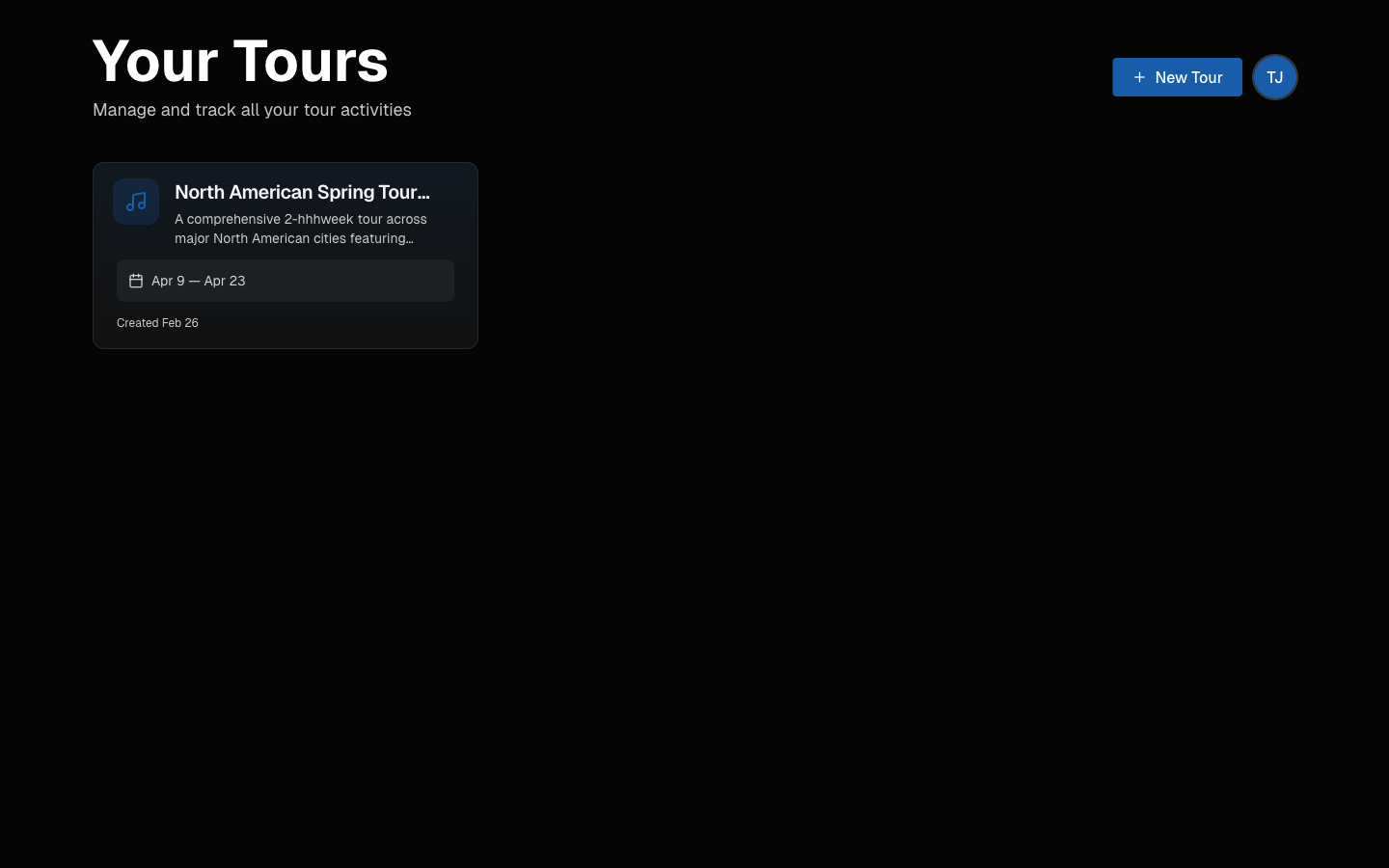
### 2. Create Your First Tour
Click **New Tour**. Add your tour name (for example, *Summer 2026 North American Run*), set dates, and choose the timezone.
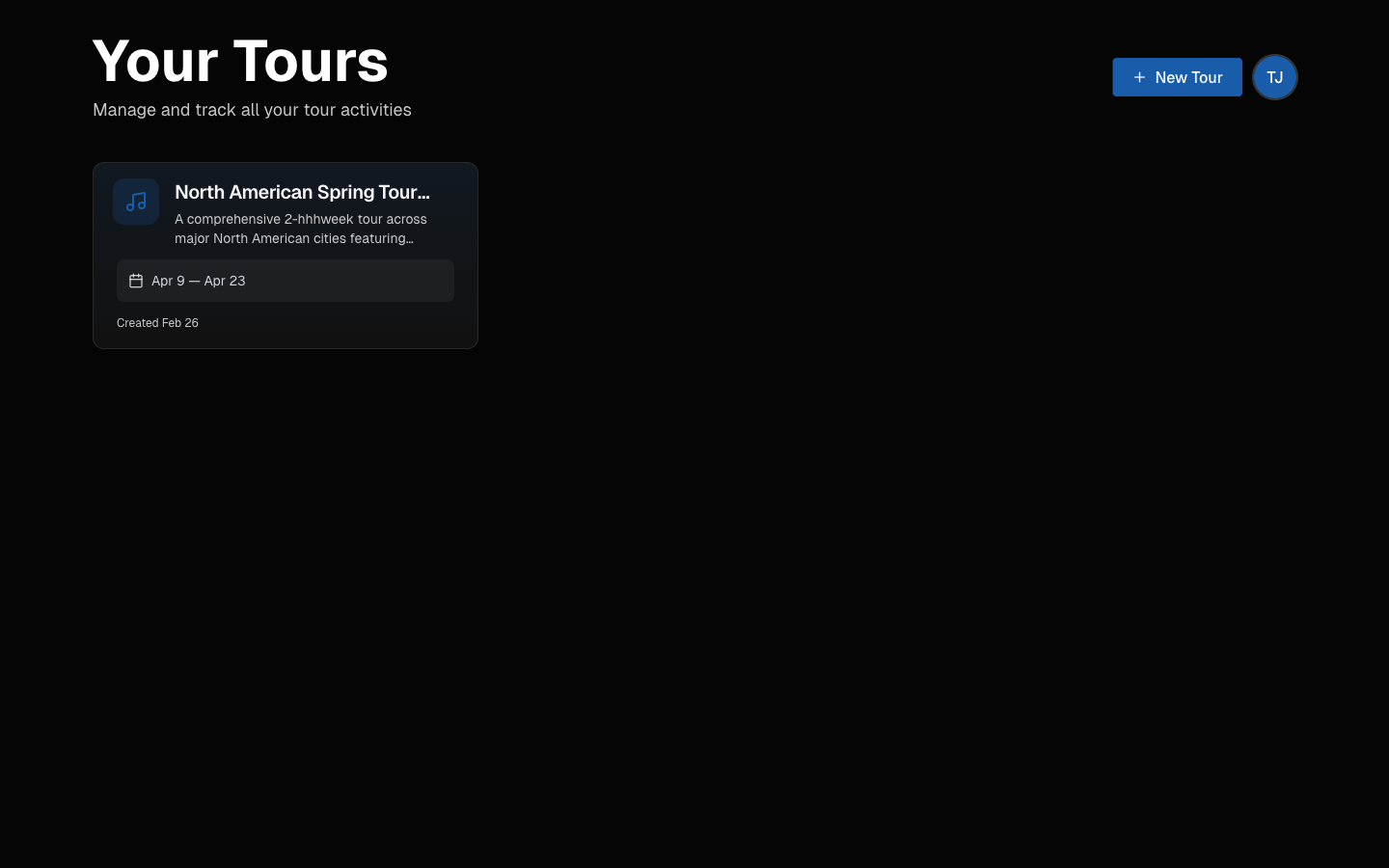
#### Tour settings you'll want to configure:
- **Tour name and dates**
- **Default currency**
- **Visibility and permissions**
### 3. Build Your Schedule
The **Schedule** section is your operational command center.
#### Show Days
Click **Add Day** and select **Show Day**. Fill in:
- **Venue details**
- **City and state**
- **Load-in, sound check, doors, and showtime**
- **Optional capacity and ticket counts**
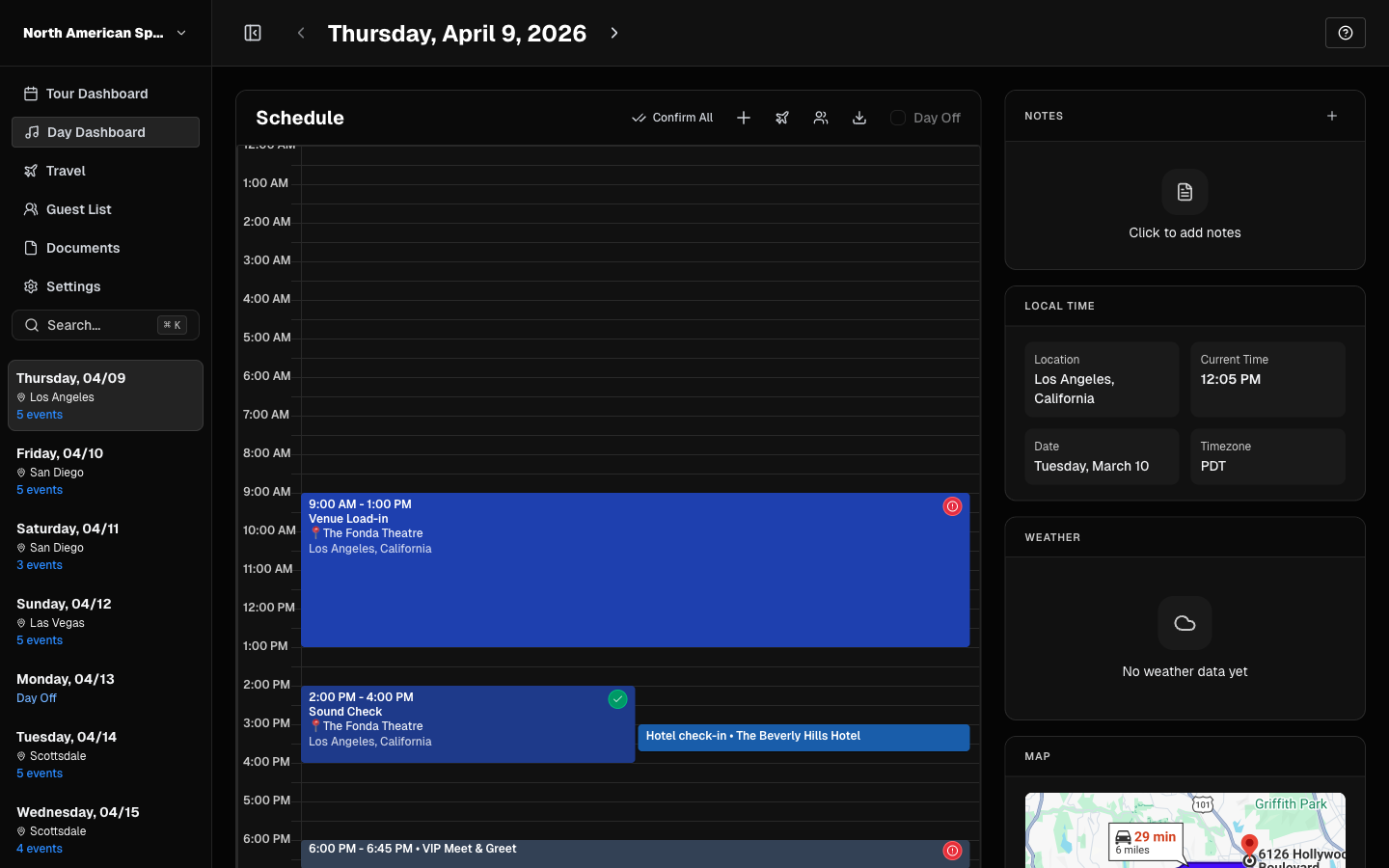
#### Travel Days
Use **Travel Day** for city moves and routing.
#### Days Off
Track rest days to keep crew pacing realistic across long runs.
#### Drag and Drop
Need to reroute? Reorder days directly in schedule management and keep logistics in sync.
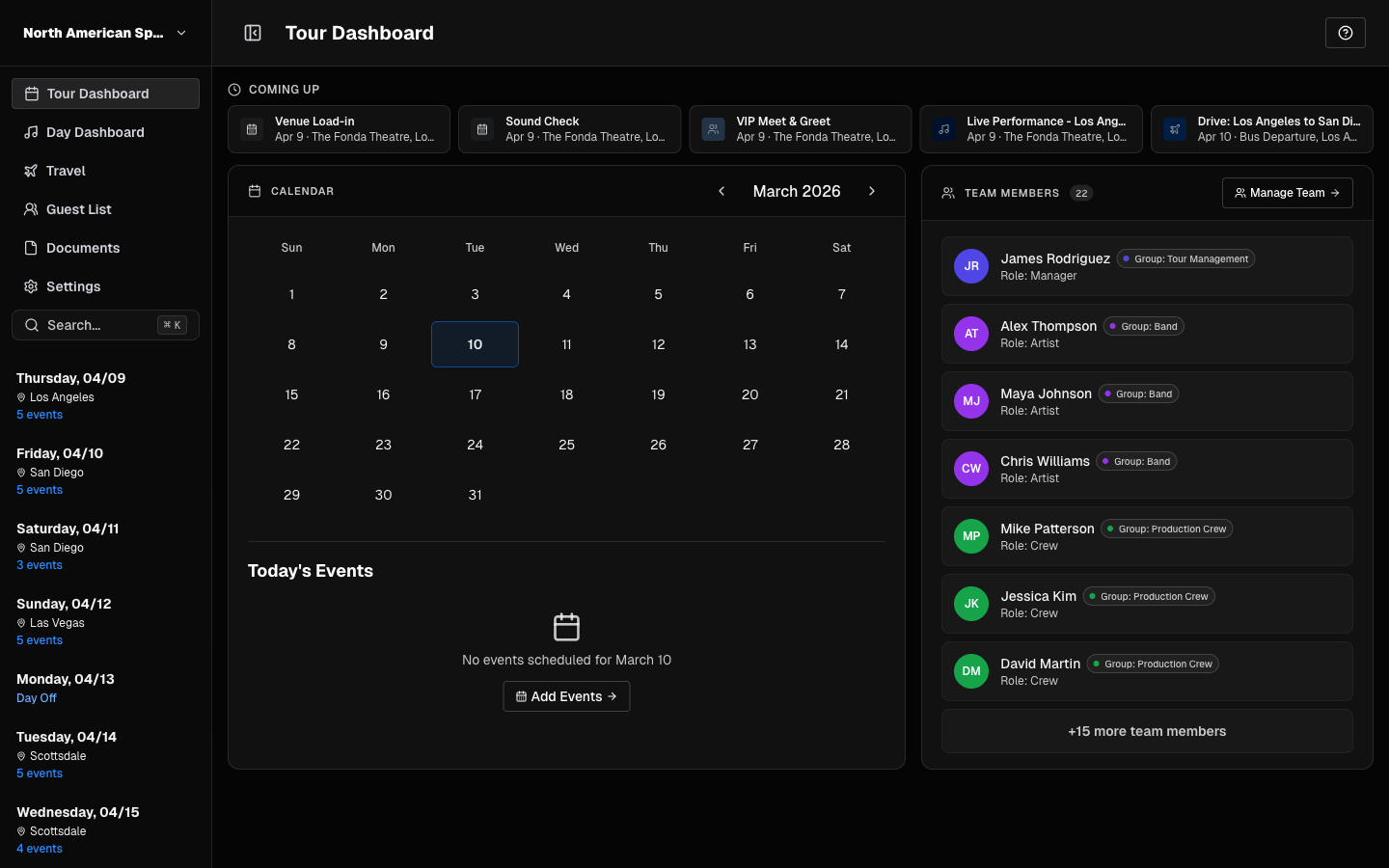
### 4. Add Hotels and Travel
From any day, add logistics:
#### Hotels
- Property name/address
- Confirmation numbers
- Check-in and check-out times
- Room block details
#### Flights
- Airline and flight number
- Departure and arrival airports
- Times and terminal details
- Passenger assignments
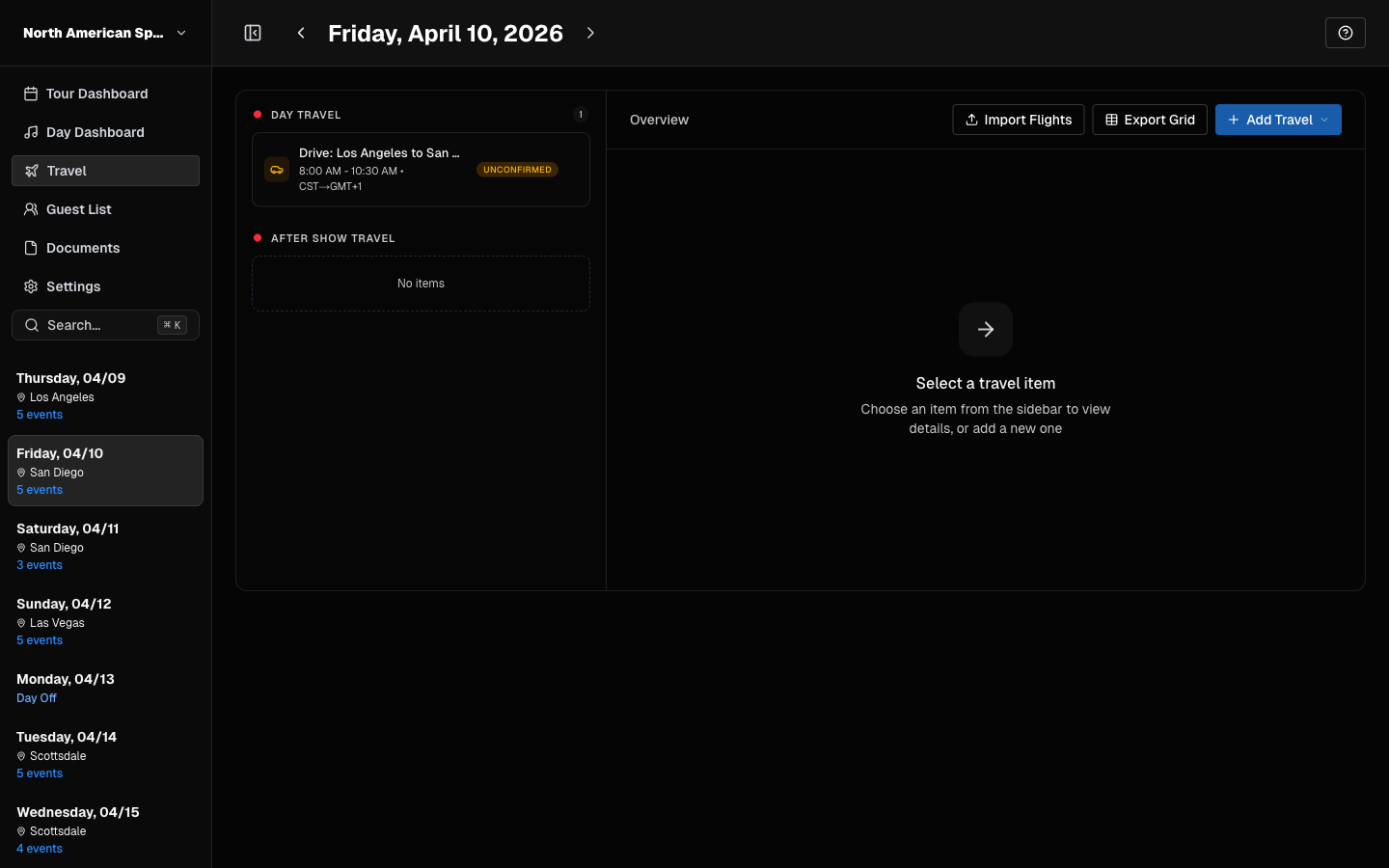
#### Ground Transportation
- Bus calls, vans, and cars
- Pickup times and locations
- Driver contact information
### 5. Invite and Organize Your Team
Go to **Settings -> Team Management**.
#### Add members
Click **Invite Team Member** and send an invite by email.
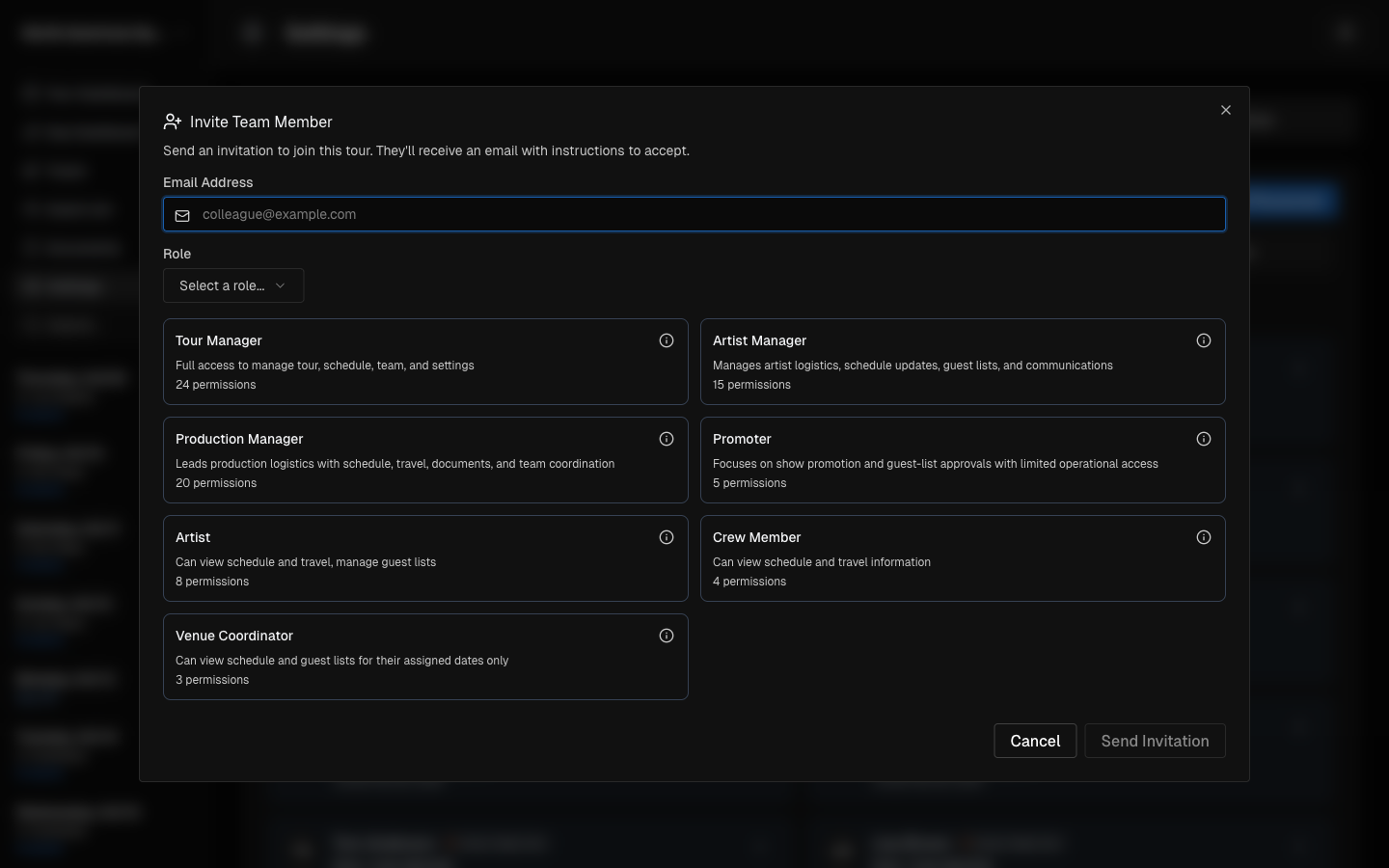
#### Roles and permissions
- **Admin**: full access
- **Manager**: edits schedule and logistics
- **Member**: controlled access based on role
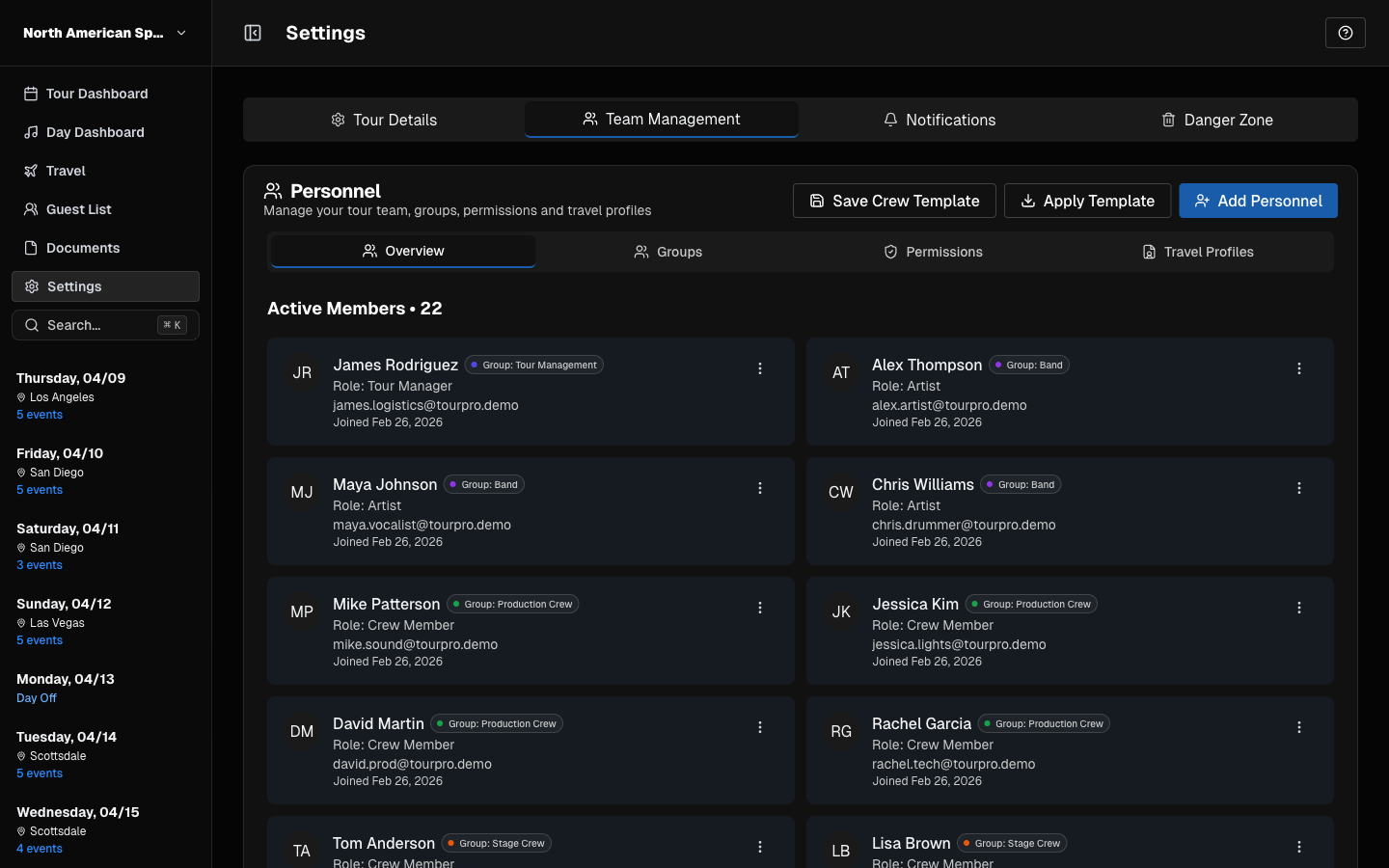
### 6. Generate Day Sheets and Exports
Day sheets give your team one clear source for daily execution:
- Venue and schedule
- Hotels and travel
- Contacts and notes
- Crew call context
Use **Export** to generate and share documents quickly.
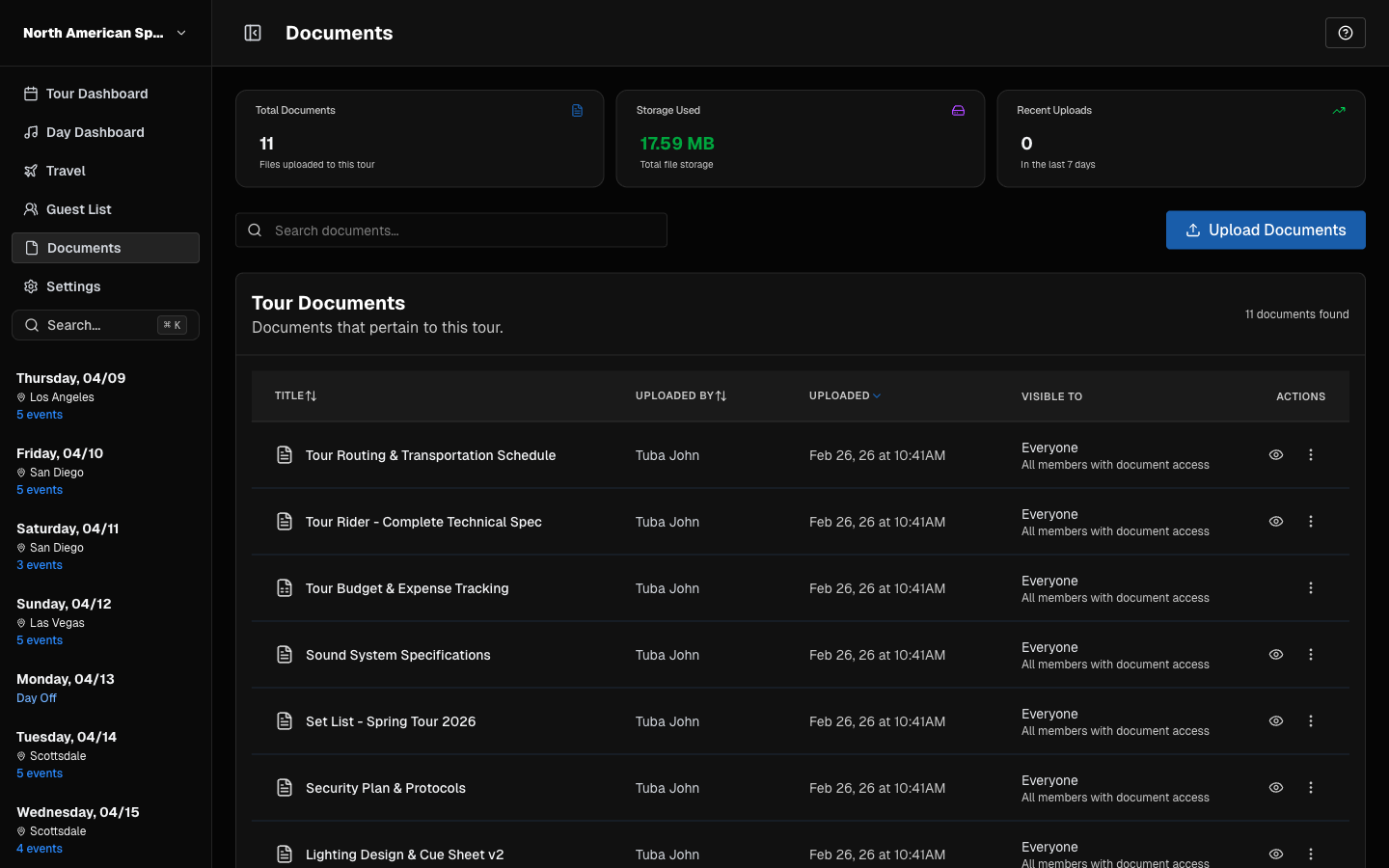
### 7. Access Across Web, Desktop, and Mobile
#### Web App
Full feature set at [tourpro.app](https://www.tourpro.app).
#### Desktop App
Native desktop builds are available for macOS and Windows.
#### Mobile App
TourPro mobile keeps day-of details in your pocket. iOS is available now, and Android rollout is in progress.
### 8. Documentation for Web and Mobile
Use these docs for the latest UI flows:
- [Getting Started](/docs/getting-started)
- [Scheduling](/docs/scheduling)
- [Team Management](/docs/team-management)
- [Documents and Exports](/docs/documents)
### 9. Tour Management Tips
#### Keep your source of truth current
Update TourPro as soon as plans change.
#### Share day sheets every day
Publish the latest version each morning or the night before.
#### Set team access early
Invite and permission your team before tour week.
### Getting Help
If you get stuck, open the [Help Center](/docs) or contact support.
---
Ready to take the chaos out of touring? [Sign up for TourPro](https://www.tourpro.app) and start managing your next tour.
## 15 Essential Tour Management Tips from Road-Tested Professionals
Source: https://www.tourpro.app/blog/tour-management-tips
Published: 2026-02-20 (updated 2026-03-10)
Tour management is one of the most demanding jobs in the music industry. You're responsible for every detail — from making sure the artist arrives at sound check on time, to handling a hotel overbooking in a city you've never been to at 2 AM.
After years of working with touring professionals, we've collected the hard-won wisdom of road-tested tour managers into this collection of essential tips.
### Communication Is Everything
#### Set expectations early
Before the tour starts, get alignment on how communication will flow. Who gets what information? What's the chain of command? How are changes communicated?
**Best practice:** Establish a single source of truth for the schedule and logistics. Whether it's TourPro or another system, everyone should know where to look. Avoid the "I thought we were staying at the other hotel" scenario.
#### Over-communicate changes
When something changes mid-tour — and it will — communicate it immediately to everyone affected. Don't assume word will travel. Use push notifications, group messages, and updated day sheets.
#### Morning briefings
Start each day with a quick briefing with key department heads. Five minutes reviewing the day sheet can prevent hours of confusion.
### Master the Advance
Advancing a show properly is the difference between a smooth day and a disaster. Here's what experienced tour managers focus on:
#### Contact sheet
Build a complete contact sheet for every venue:
- Production manager and their direct line
- Box office contact
- Catering coordinator
- Security director
- Local crew chief
#### Confirm everything twice
Confirm every detail at least twice — once a week out, once the day before. Hotels, flights, car services, meals, and everything else. Trust but verify, every single time.
#### Know your escape routes
Always know where the nearest hospital is. Know the fastest route to the airport. Know alternative hotels in case of emergencies. The best tour managers are the ones who've planned for the thing nobody expects.
### Logistics & Organization
#### Build your day sheet the night before
Don't wait until the morning to put together the day's information. Build it the night before and send it out so everyone wakes up knowing what's happening.
#### Track everything digitally
Spreadsheets are fine until they're not. Modern tools like TourPro keep your schedule, hotels, flights, contacts, and documents in one place — accessible to your whole team with appropriate permissions.
#### Keep a running tour bible
Maintain a master document with every standing piece of information: allergies and dietary restrictions, bus rules, settlement procedures, emergency contacts, gear lists. Update it tour to tour.
### Team & Crew Management
#### Know your crew
Take the time to learn everyone's name, role, and working style. A crew that feels seen and respected will go the extra mile.
#### Manage energy, not just time
Touring is a marathon. Watch for burnout in your team. Make sure days off are actually restful. Protect quiet time on the bus. The physical and mental health of your crew affects everything.
#### Clear roles and responsibilities
Make sure everyone knows their lane. Ambiguity causes confusion and dropped balls. Document who handles what, especially when responsibilities overlap.
### Budget & Settlements
#### Per diems and buyouts
Set clear per diem policies before the tour starts. Make sure everyone knows the rate, when it's paid, and what happens on buyout days.
#### Settlement preparation
For settlement nights, have your paperwork organized before you walk into the office. Know your guarantees, merch percentages, and any deductions up front.
### Self-Care for Tour Managers
This is the section nobody writes but everyone needs:
#### Protect your sleep
You will be the last one awake and the first one up. That's the gig. But that doesn't mean you should accept chronic sleep deprivation. Build systems that let you rest.
#### Have a routine
The road has no routine — so make your own. A morning coffee ritual, a nightly checklist, a post-show debrief. These anchors keep you grounded.
#### Build your support network
Tour management can be isolating. Stay connected to other TMs, your family, and friends. The best TMs have people they can call when things get hard.
---
Tour management isn't just a job — it's a craft. And like any craft, it gets better with practice, mentorship, and the right tools. [TourPro](https://www.tourpro.app) was built to make the logistics easier so you can focus on what matters most: the show.
## TourPro Mobile App: Your Tour in Your Pocket
Source: https://www.tourpro.app/blog/tourpro-mobile-app-guide
Published: 2026-02-10 (updated 2026-03-10)
The TourPro mobile experience keeps your tour in your pocket. Whether you're backstage checking tomorrow's travel, at the hotel reviewing the day sheet, or on the bus confirming venue details, everything you need is one tap away.
This guide covers the current mobile workflow and how it pairs with the web app.
### Getting Started
#### Download the app
- **iOS:** Download from the [App Store](https://apps.apple.com/us/app/tourpro-158082/id6759233330)
- **Android:** Download from [Google Play](https://play.google.com/store/apps/details?id=app.tourpro.mobile)
#### Sign in
Use the same credentials as web. Tour data syncs across devices automatically.
### Home and Tour Overview
Open the app to see your tours, then tap into the active one.
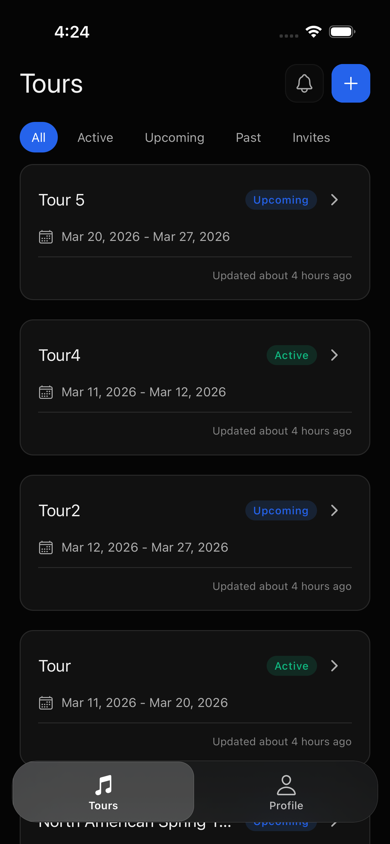
#### Tour overview includes:
- **Today's Schedule**
- **Team**
- **Tour details**
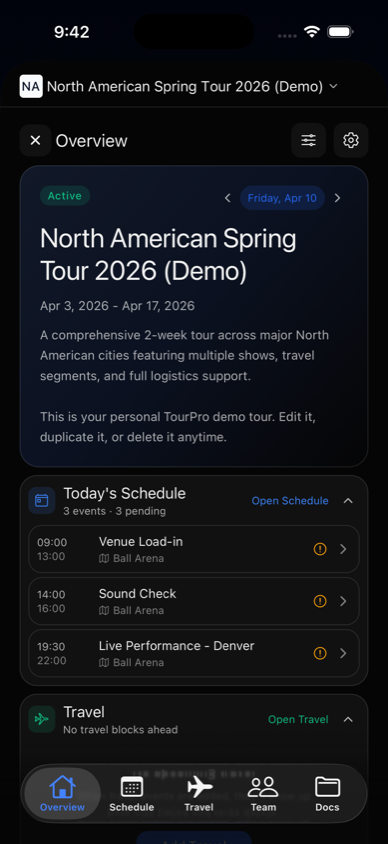
#### Team view
Open the roster to find managers, crew, and artists by role while you are moving between stops.
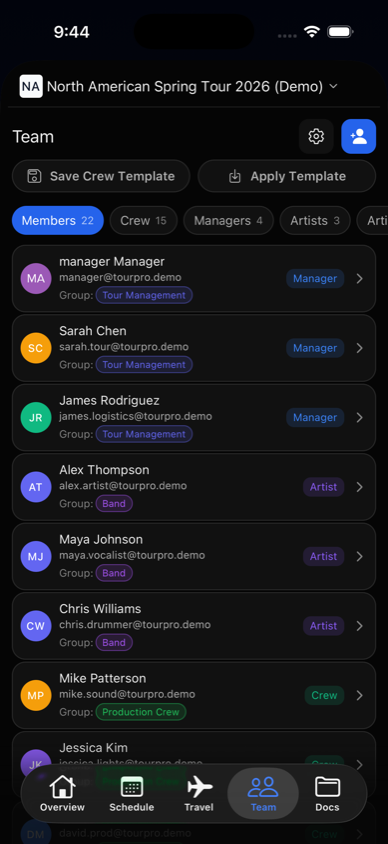
### Schedule and Day-of Execution
#### Schedule view
Scroll upcoming days with show/travel/day-off context and key timing.
#### Day detail
Each day contains:
- Schedule timeline
- Hotel details
- Flight and travel data
- Contact and note context
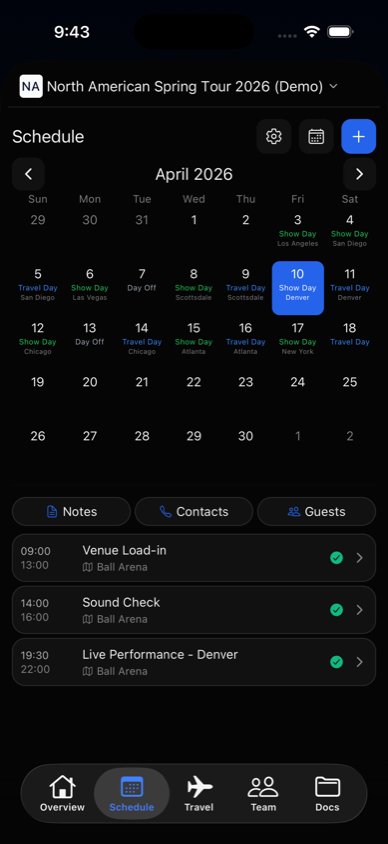
#### Quick actions
From day detail you can:
- Share a day-sheet summary
- Open addresses in maps
- Tap to call key contacts
### Push Notifications
Stay current with alerts for:
- Schedule changes
- New logistics
- Team updates
- Day-sheet reminders

### Guest List Management
Manage VIP and comp requests from your phone:
- Approve or deny requests
- Track guest counts
- Review status quickly on show day
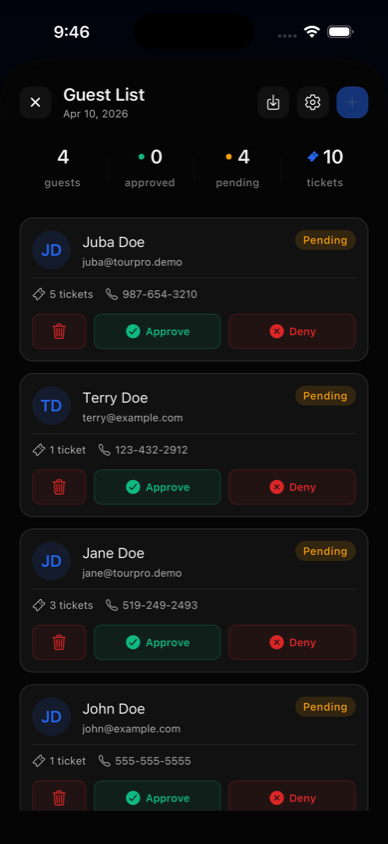
### Offline Access
Touring means inconsistent signal. TourPro mobile is built to stay useful offline:
- Previously loaded tour and schedule data remain available locally
- Edits to existing non-travel schedule events can be made offline and sync when connectivity returns
- Creating or deleting events currently requires a connection
### Web and Mobile Workflow
For most teams:
- Use **web/desktop** for setup and planning
- Use **mobile** for day-of execution and updates on the move
### Documentation for Current UI
- [Getting Started Docs](/docs/getting-started)
- [Scheduling Docs](/docs/scheduling)
- [Team Management Docs](/docs/team-management)
- [Documents Docs](/docs/documents)
---
The mobile app is built to be the first thing you check in the morning and the last thing you check at night. [Get started at tourpro.app](https://www.tourpro.app).
## Why We Built TourPro: From Spreadsheets to Purpose-Built Tour Management
Source: https://www.tourpro.app/blog/why-we-built-tourpro
Published: 2026-01-28 (updated 2026-03-10)
Every piece of software starts with a frustration. TourPro started with a spreadsheet.
Not just any spreadsheet — a massive, color-coded, tab-heavy Google Sheet with hundreds of rows, dozens of columns, and a formula so fragile that changing one date would break half the document. If this sounds familiar, you've probably worked in touring.
### The Problem
Tour management is one of the most complex logistics challenges in entertainment. A typical tour involves:
- **Dozens of show days** across multiple cities, states, or countries
- **Hotels** — different properties every night, with room blocks, confirmation numbers, and check-in/out times
- **Flights** — for artists, crew, and production team members
- **Ground transportation** — buses, vans, and car services
- **Venue details** — capacities, load-in times, production requirements
- **Team coordination** — everyone from the bus driver to the artist needs the right information at the right time
And the tool most touring professionals use to manage all of this? Spreadsheets. Or worse — a combination of spreadsheets, email chains, group texts, PDFs, and sticky notes.
### Why Spreadsheets Fail
Let's be clear: spreadsheets are incredible tools. They're flexible, universally accessible, and don't require a subscription to use. But for touring, they fail in critical ways:
#### No real-time collaboration
When three people edit the same Google Sheet simultaneously, things break. Formulas overwrite each other. Rows shift. Someone accidentally deletes the hotel column and nobody noticed until the day of.
#### No permissions model
Everyone with the link can see everything. Want the merch team to see show details but not hotel costs? Want the bus driver to see addresses but not the settlement worksheet? You can't do that with a spreadsheet.
#### No mobile experience
Try using a Google Sheet on your phone in the back of a van at midnight. It's not great. The information is there, technically, but finding what you need is a scroll-and-pinch nightmare.
#### No intelligence
Spreadsheets don't know what a "show day" is. They don't know that load-in is usually before sound check. They can't auto-calculate drive times or pull in weather data. You type everything, format everything, and maintain everything manually.
### What We Built Instead
TourPro is designed from the ground up for one purpose: making tour logistics effortless.
#### Structured data that makes sense
Instead of columns and rows, TourPro uses purpose-built fields: venues, hotels, flights, contacts, and schedules. Each piece of data is typed, validated, and connected to the rest of the tour.
#### Role-based access control
Every team member sees exactly what they need. Admins get the full picture. Managers can edit logistics. Crew members see their schedule and hotel info. No more sharing the entire sheet with everyone.
#### Mobile-first access
The mobile app is built specifically for checking information on the go. Open it, see today's schedule, check the hotel, call the venue. Done in seconds.
#### Automatic day sheets
Instead of manually building a day sheet in Word every morning, TourPro generates them automatically from your tour data. Export to PDF, share to the team, or let everyone access it in the app.
#### Venue search
When you add a show, address search helps you find the venue and fill in its location. You can add tour-specific venue details and contacts alongside it.
### Built by Touring People
TourPro isn't built by a Silicon Valley startup. It's built by people who've been on the road — who know what it's like to check into a hotel at 3 AM, who understand why the day sheet needs to be sent by 8 AM, and who've felt the pain of a miscommunicated lobby call time.
Every feature exists because someone on a tour needed it. Every design decision is informed by real-world touring workflow.
### Where We're Going
We're just getting started. The features we're building next are driven by the touring community:
- **Advanced budgeting and settlement tools**
- **Vendor management and local crew databases**
- **Integration with ticketing platforms**
- **AI-powered scheduling suggestions**
- **Offline event creation and deletion**
If you're a touring professional and you've ever been frustrated by a spreadsheet, a lost PDF, or a miscommunicated hotel name — we built TourPro for you.
---
Ready to try it? [Sign up at tourpro.app](https://www.tourpro.app) and see the difference purpose-built tour management makes.